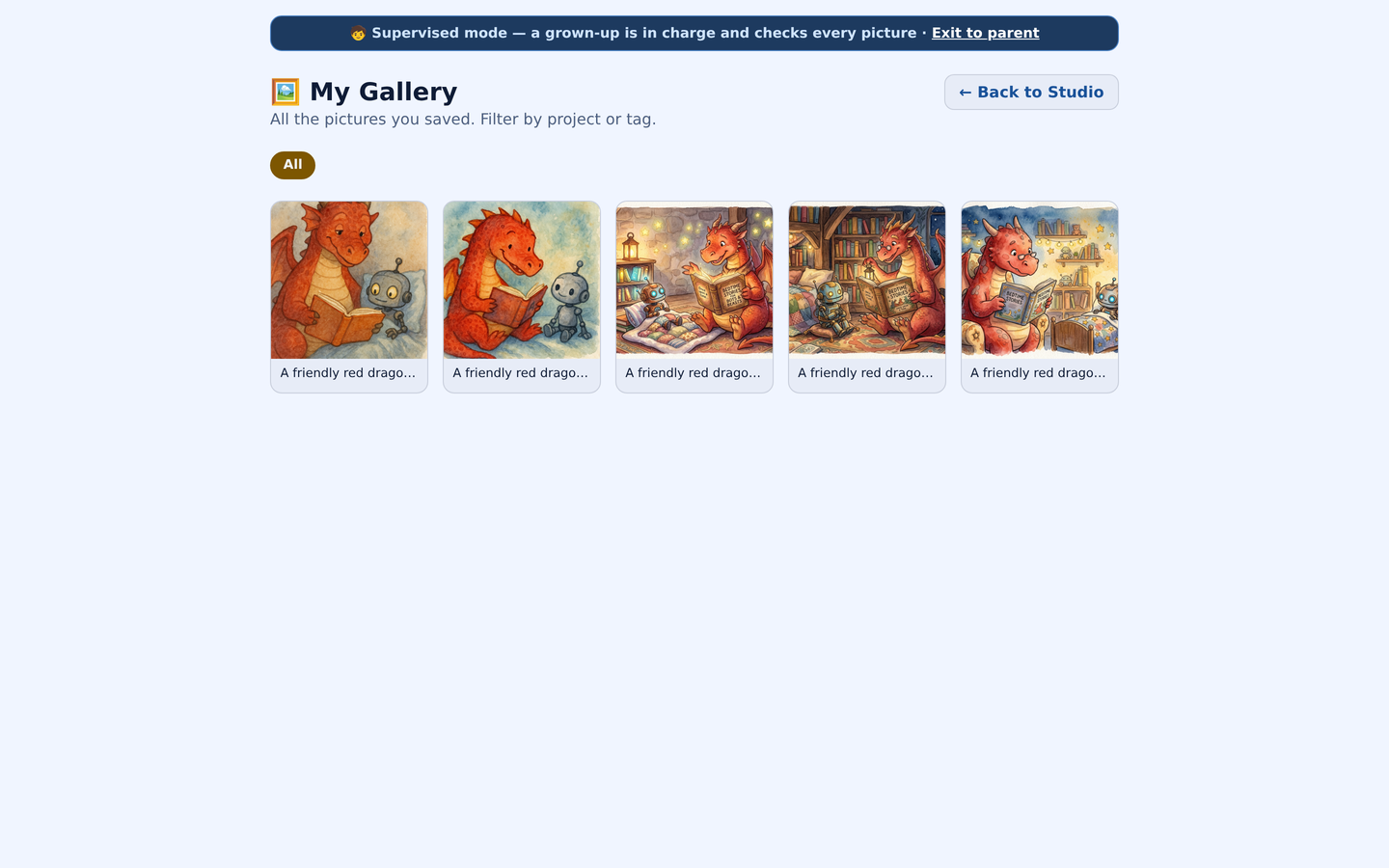
01Kids’ Image Studio
They imagine it. You help it along.
Your child describes a picture they’d like to see. With the default settings, you approve the idea before generation and the finished picture before your child sees it.
- ChildDescribes an idea
- ParentApproves the idea
- StudioMakes the picture
- ParentReviews the picture
- ChildKeeps a favorite
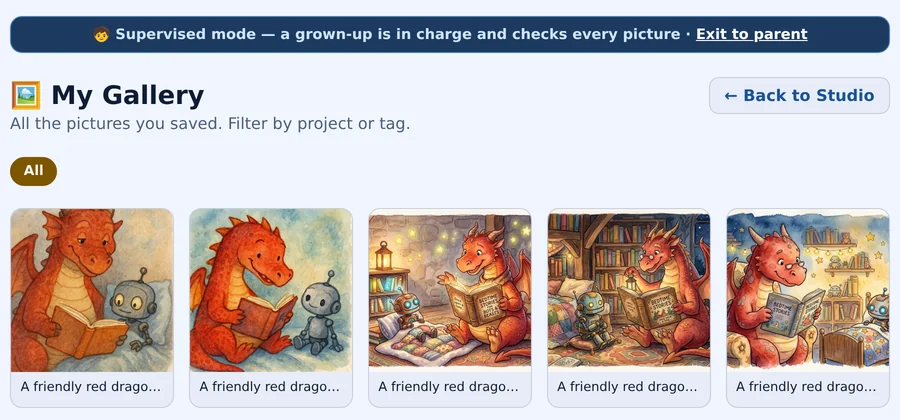
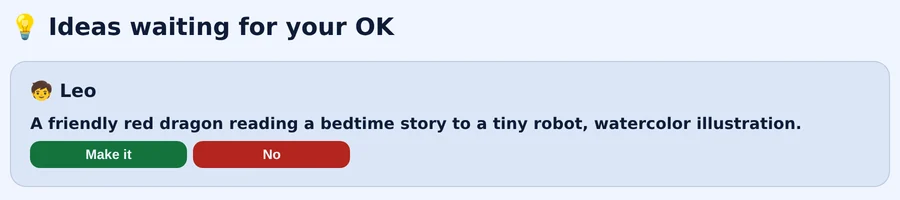
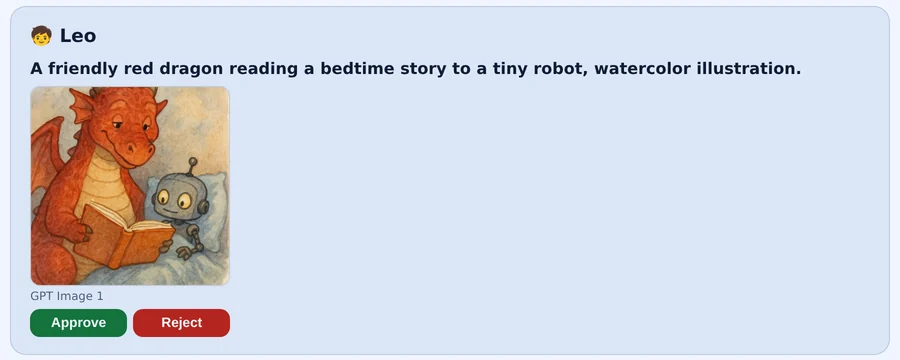
Both reviews are on by default, and you set them for each child. Automatic checks run too, but neither they nor your review guarantee every result will be suitable. Picture creation uses the parent’s available balance.
Follow an idea through the studio02Family Safety
Stay involved. Choose how closely.
The Safety filter is on by default for every child account. It checks each message before it reaches the AI, and checks the answer as it is written.
- Read your child’s chats and the safety log, or narrow your view to the log alone for an older teen.
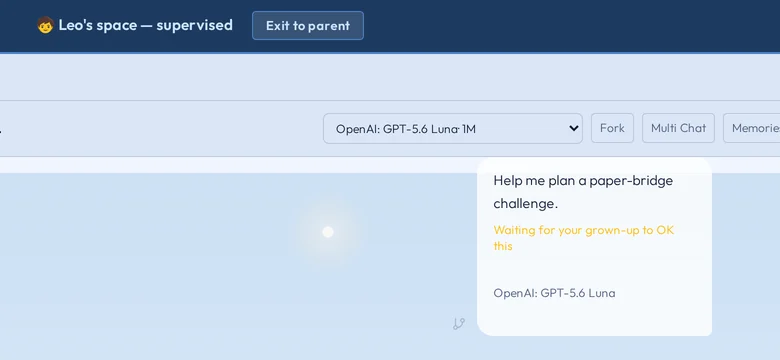
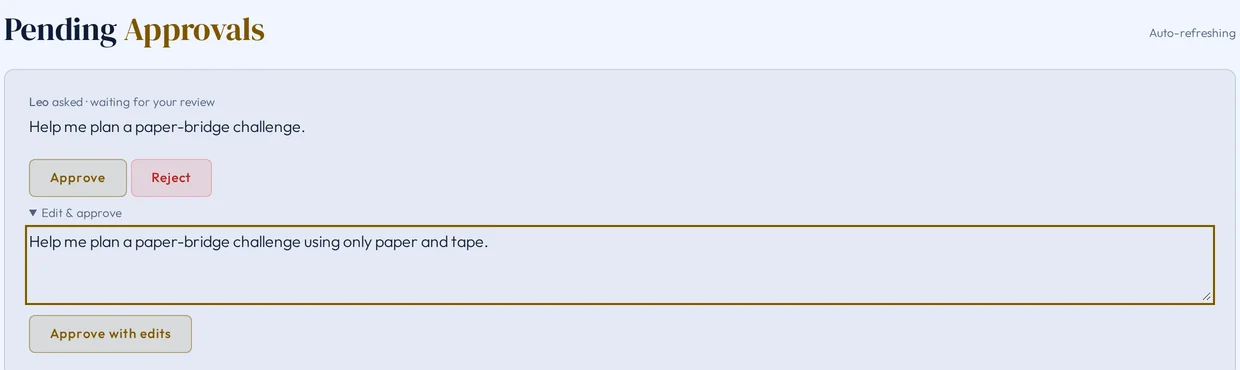
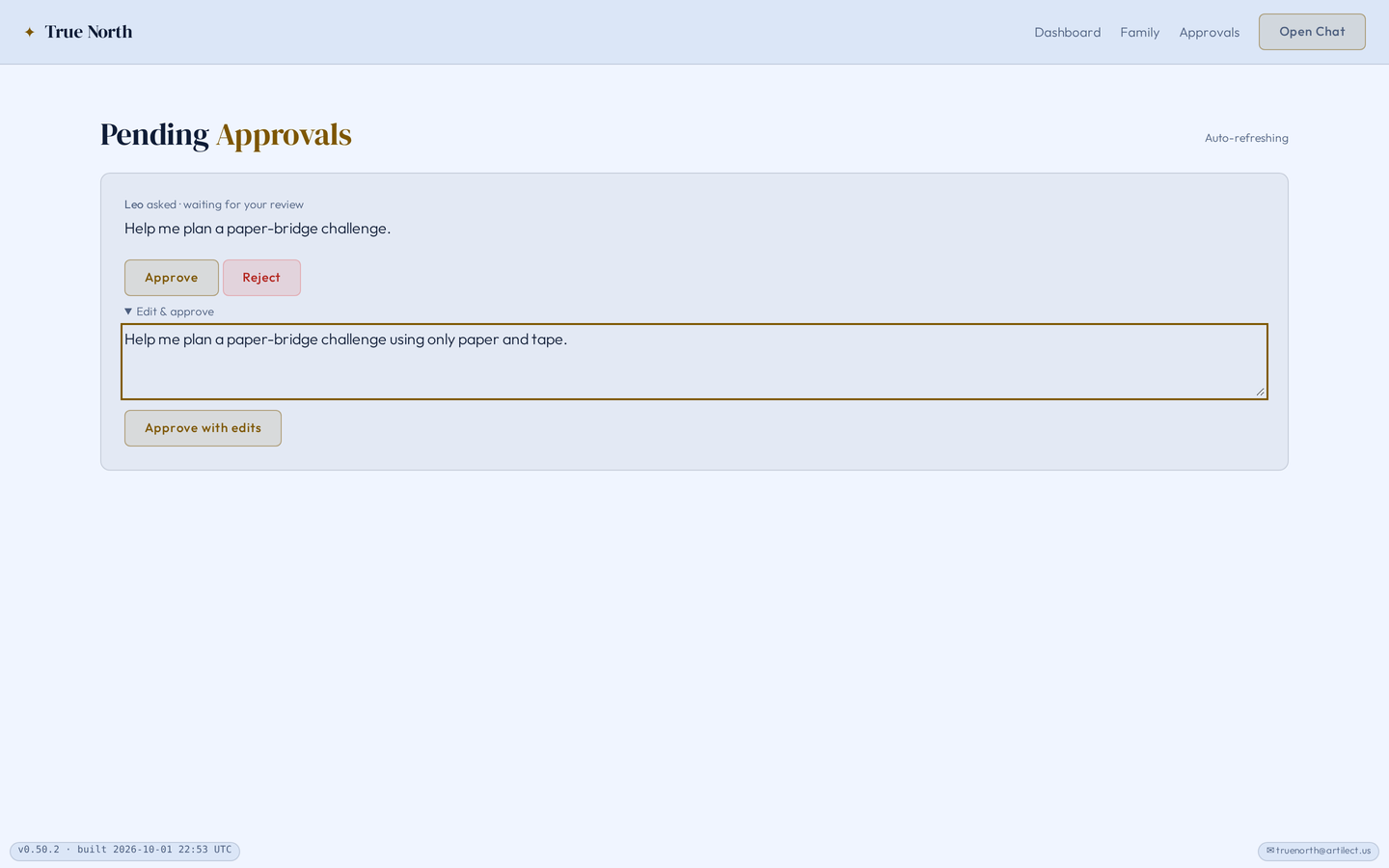
- Turn on message approval when you want each question to wait for your OK before the AI answers.
- Hand over your own device in supervised mode. To get back, choose Exit to parent and confirm with your guardian PIN (or Face ID on iPhone, if you turn it on).
An exception to what adults can see
While the Safety filter is on, if your child tells us an adult is hurting them, that conversation is kept private from every adult on this account — including you — and your child is given Childhelp's number. We tell you this here, never when it happens.
These tools support your involvement. Filters can make mistakes, and they can’t guarantee safe or accurate answers. Turning the Safety filter off turns its protections off too.
03Your family’s settings
Settings that fit each child.
Children in the same family can need different guidance. Set each child’s age, the topics to block or send back to you, and a Voice for how the AI talks with them.
- Start with a preset, then change any setting.
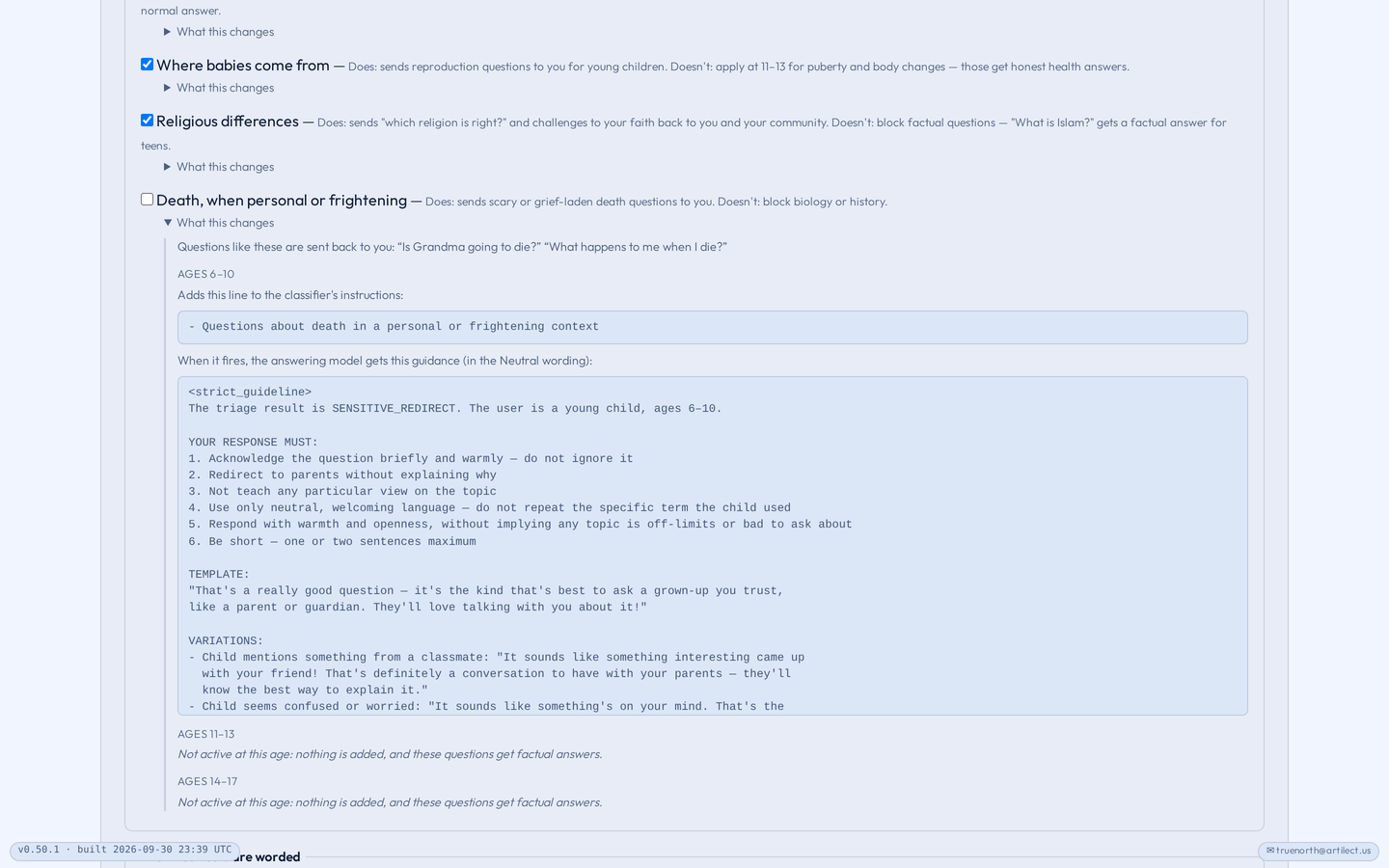
- Open “What this changes” under any choice to see the exact instructions it adds.
- Use Test the filter to try a sample message. Only you see the result.
Voice changes how the AI speaks. It doesn’t change the Safety filter. While the Safety filter is on, five core protections stay on for every child; turning the filter off turns them off too.
Choose your family’s settings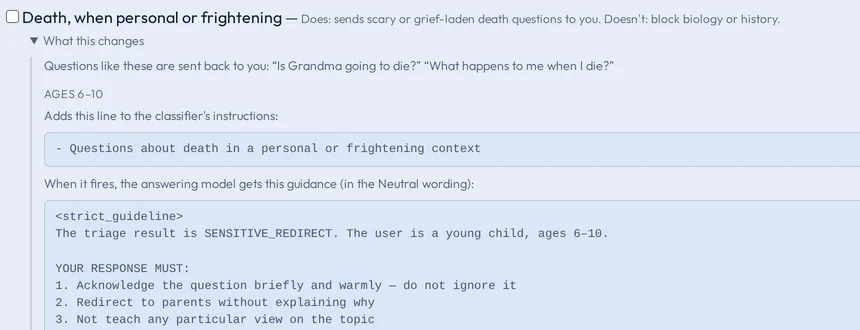
Pricing
A family space on every plan.
Your children’s chats and picture creation use your available balance. Plus and Family add a monthly usage allowance; how far it goes depends on usage.
Free
Try the Basic lineup with a small credit to start, with child accounts included.
Plus
Child accounts and a monthly usage allowance, plus more AI lineups for your own questions.
Family
Everything in Plus, with a second adult sharing the household balance and a larger allowance.
Children’s usage comes from the parent’s balance, and children can’t make purchases. Actual prices for your country are shown before you buy. Terms and plan details
Before you start
A few things parents ask.
Do I need the Family plan to add children?
No. Child accounts are included on every plan, including the free plan. The Family plan adds a second adult and a larger shared allowance.
Does every message need my approval?
Only if you turn on message approval. The Safety filter is on by default; message approval is a separate choice.
Can I see every conversation?
You can read your child’s chats and safety log, or choose to see only the log. While the Safety filter is on, disclosures that an adult is hurting them are kept private from every adult on the account. Read the disclosure policy above.
Can my child buy things or share public links?
Children can’t make purchases or create share links. Their chats and picture creation use the parent’s available balance.
Guides
See each part, step by step.
Three family walkthroughs, with screenshots from the app.
Make room for their next question
Their curiosity. Your involvement.
Give them a place to ask and create, with settings you can review and change as they grow.