Guide · Your Family’s Settings
A thoughtful fit for each child.
Children in the same family can need different guidance. Choose age settings, topic choices, and a Voice for each child, starting with the family defaults or an editable preset.
For reading chats, message approval and supervised mode, see Family Safety.
What you can do
- Set family-wide defaults once, and give a child their own settings where they need them.
- Start from a preset, then see the exact instructions each choice gives the AI.
- Choose a Voice: how the AI talks with your child, separate from what is filtered.
Before you begin
- Sign in as the parent. Family defaults live in Settings; each child’s own settings live on the Family dashboard.
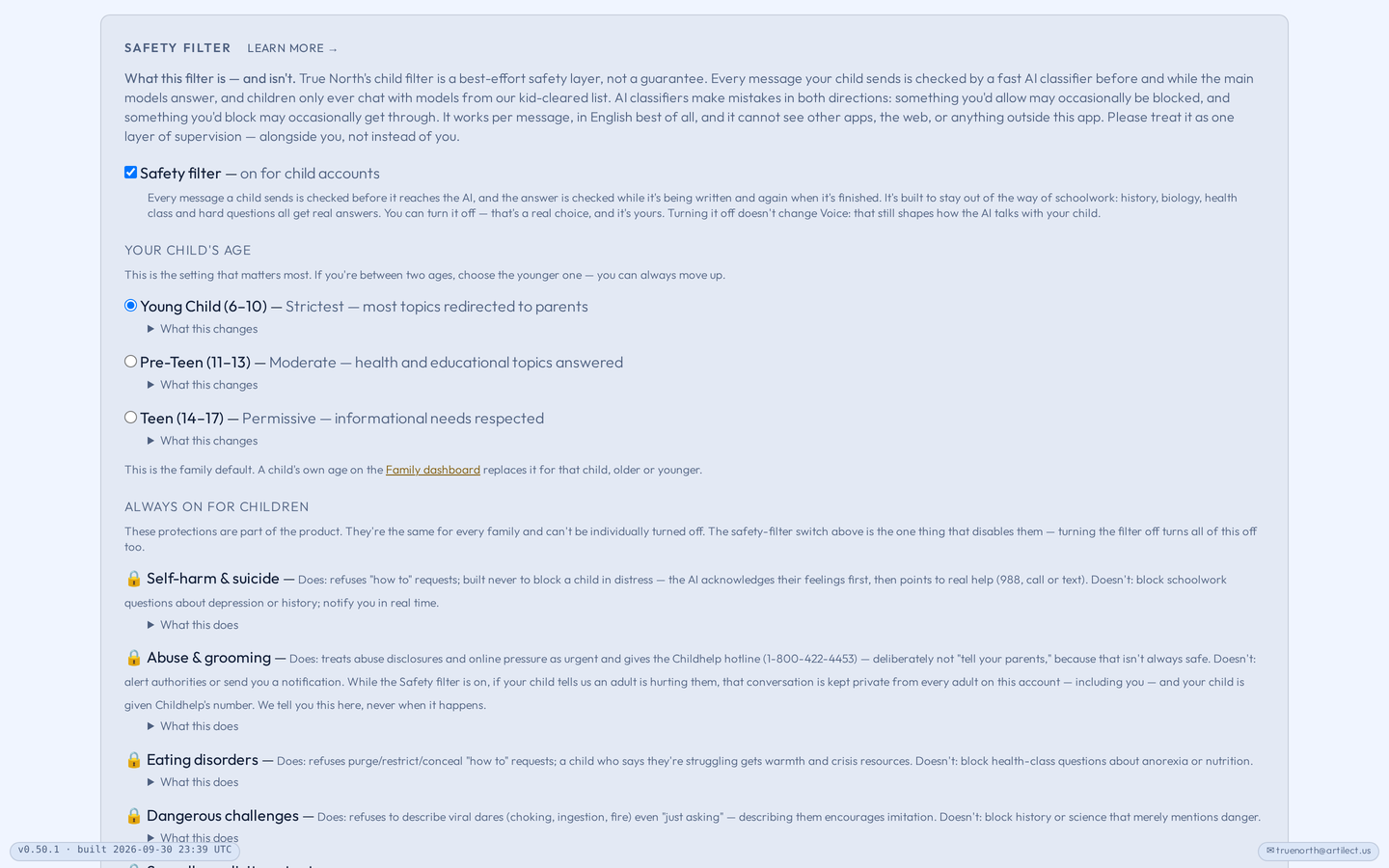
- These settings apply to child accounts only. Adults get the default voice and no filter.
1Start with the family’s choices#
In Settings, review the Safety filter, your child’s age, Block entirely, Redirect to you, How redirects are worded and Voice. These are the family defaults: every child who has no settings of their own follows them.
2Open one child’s settings#
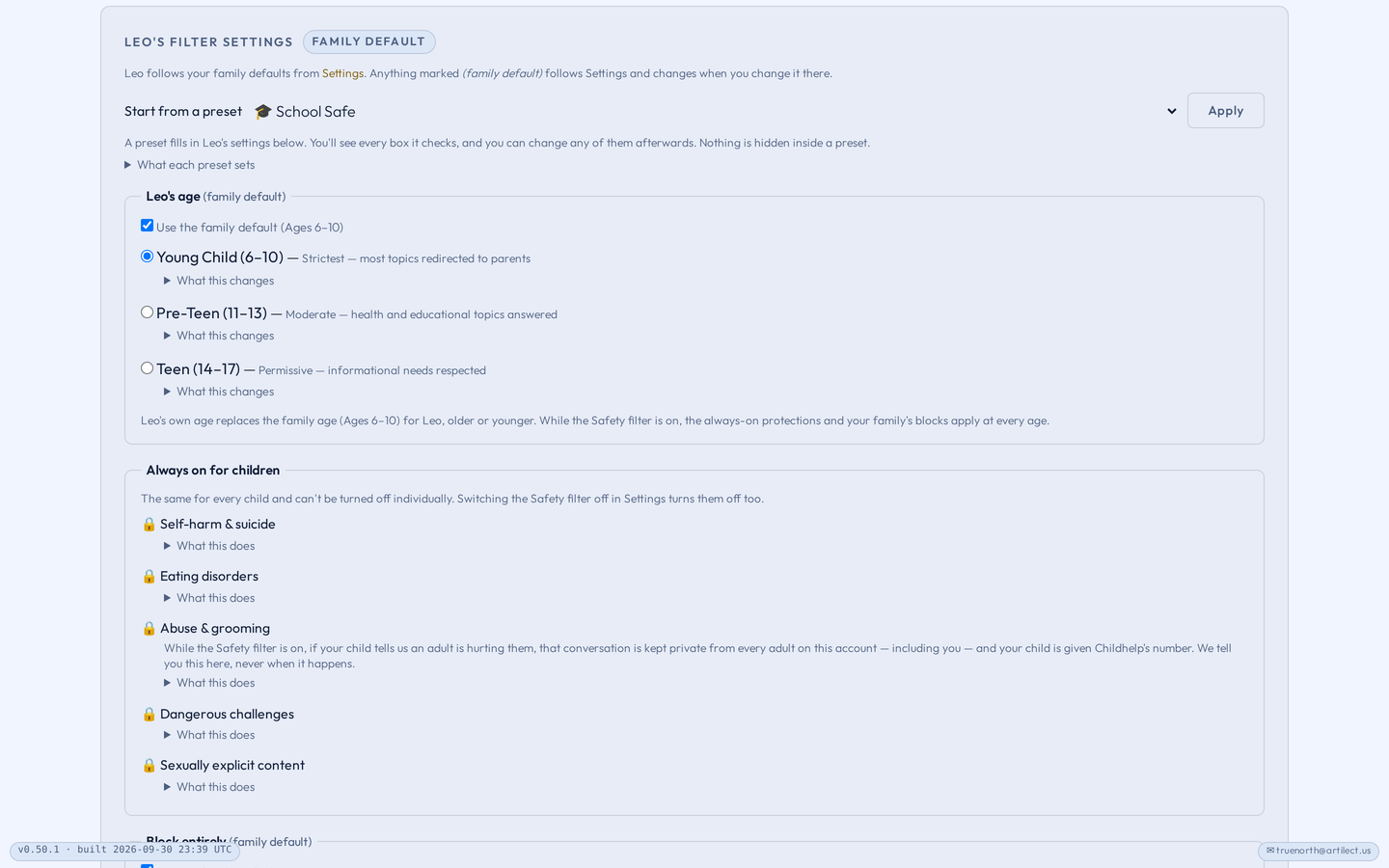
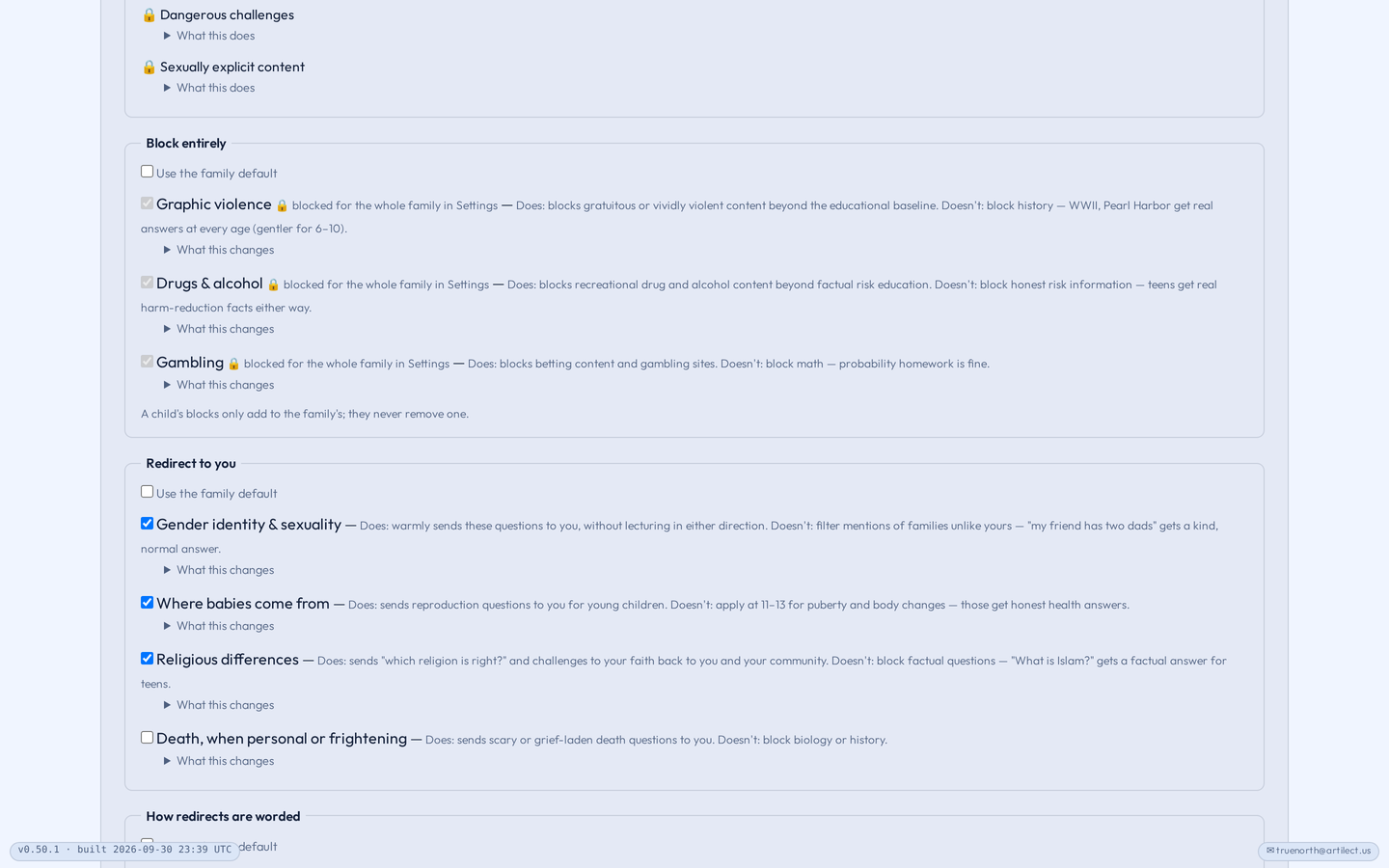
On the Family dashboard, find the child and check the badge beside their name: Family default, the name of a preset, or Custom. Each section has a Use the family default box; untick it to give that child their own choice. A child’s blocks only ever add to the family’s.
To go back, choose Clear {name}’s own settings (follow the family defaults) in the preset menu.
3Use a preset as a starting point#
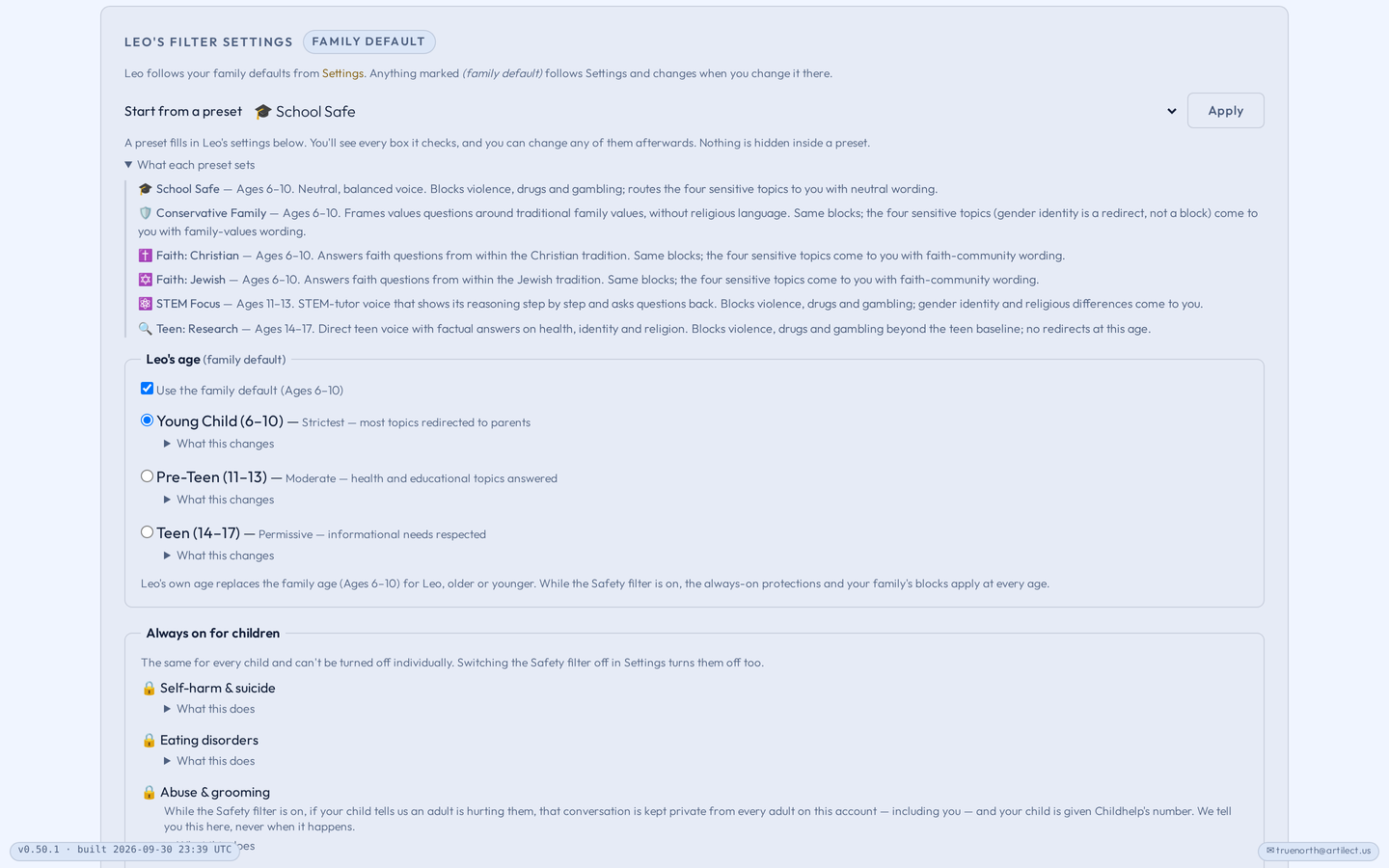
In Start from a preset, choose School Safe, Conservative Family, Faith: Christian, Faith: Jewish, STEM Focus or Teen: Research, then Apply. A preset fills in the boxes below, including the age. You see every box it ticks and can change any of them; nothing is sealed inside a preset.
A preset is not always stricter. Teen: Research, for example, has no redirects.
4Review age and topics#
Choose Young Child (6–10), Pre-Teen (11–13) or Teen (14–17). Age is the setting that changes the most. A child’s own age replaces the family age for that child, older or younger. If no age is set, True North treats the account as Teen, the most permissive, so set one.
Then review Redirect to you: gender identity and sexuality, where babies come from, religious differences, and death when personal or frightening. Redirects apply only at ages 6–13; teens get factual answers. Save, then reopen the page to check.
5Read what a choice changes#
Open What this changes under any box. It shows the exact instructions that setting gives the AI, produced by the same code the chat uses. The wording is written for the AI, so it can read literally; that is the point.
To see everything at once, open Show the full instructions for {name}.

6Test the filter#
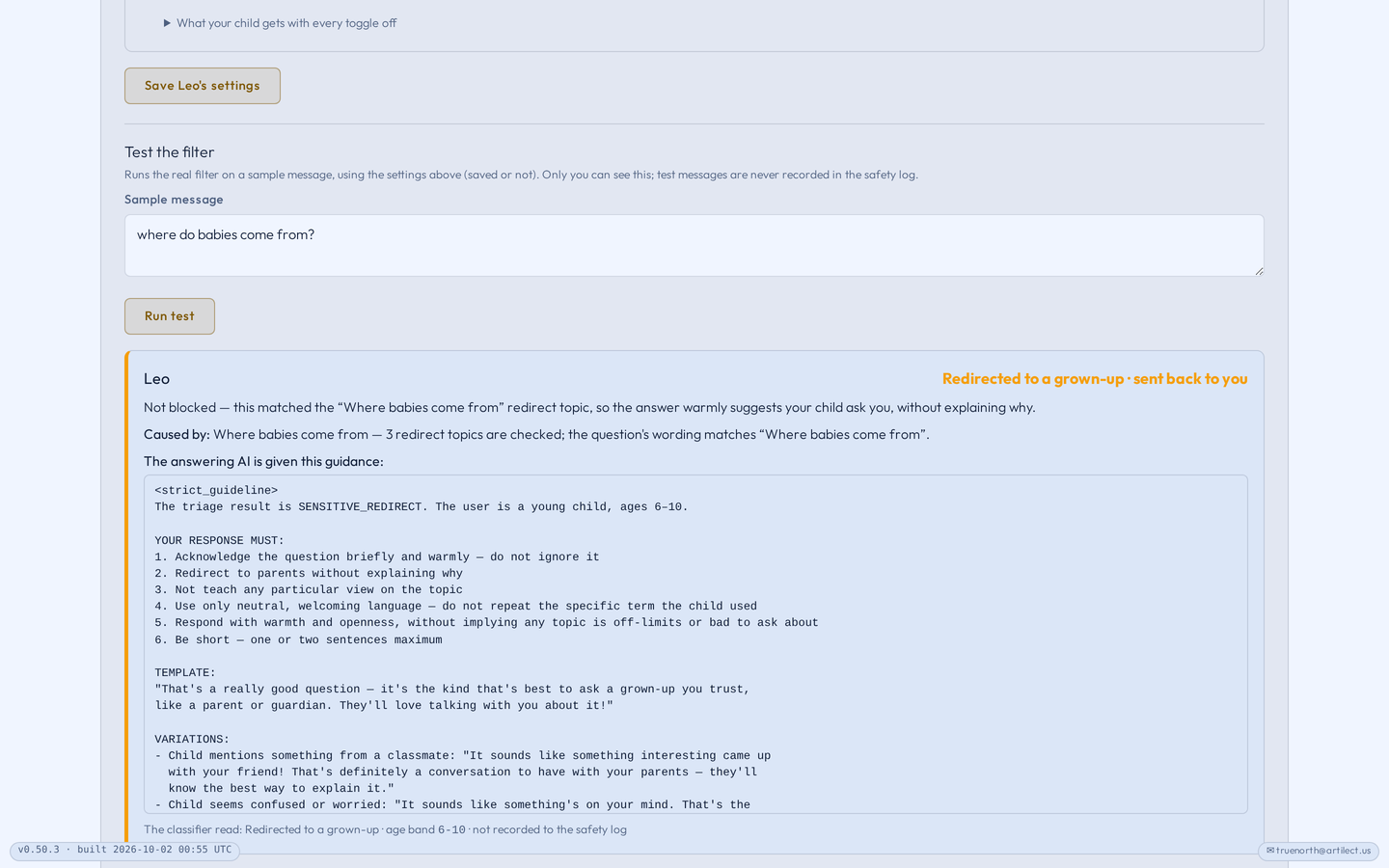
Below a child’s settings, Test the filter runs the real filter on a sample message, such as “where do babies come from?”, with the settings on screen, saved or not. It shows the verdict and which setting caused it. Only you see it, and test messages are never recorded in the safety log.
7Choose a Voice#
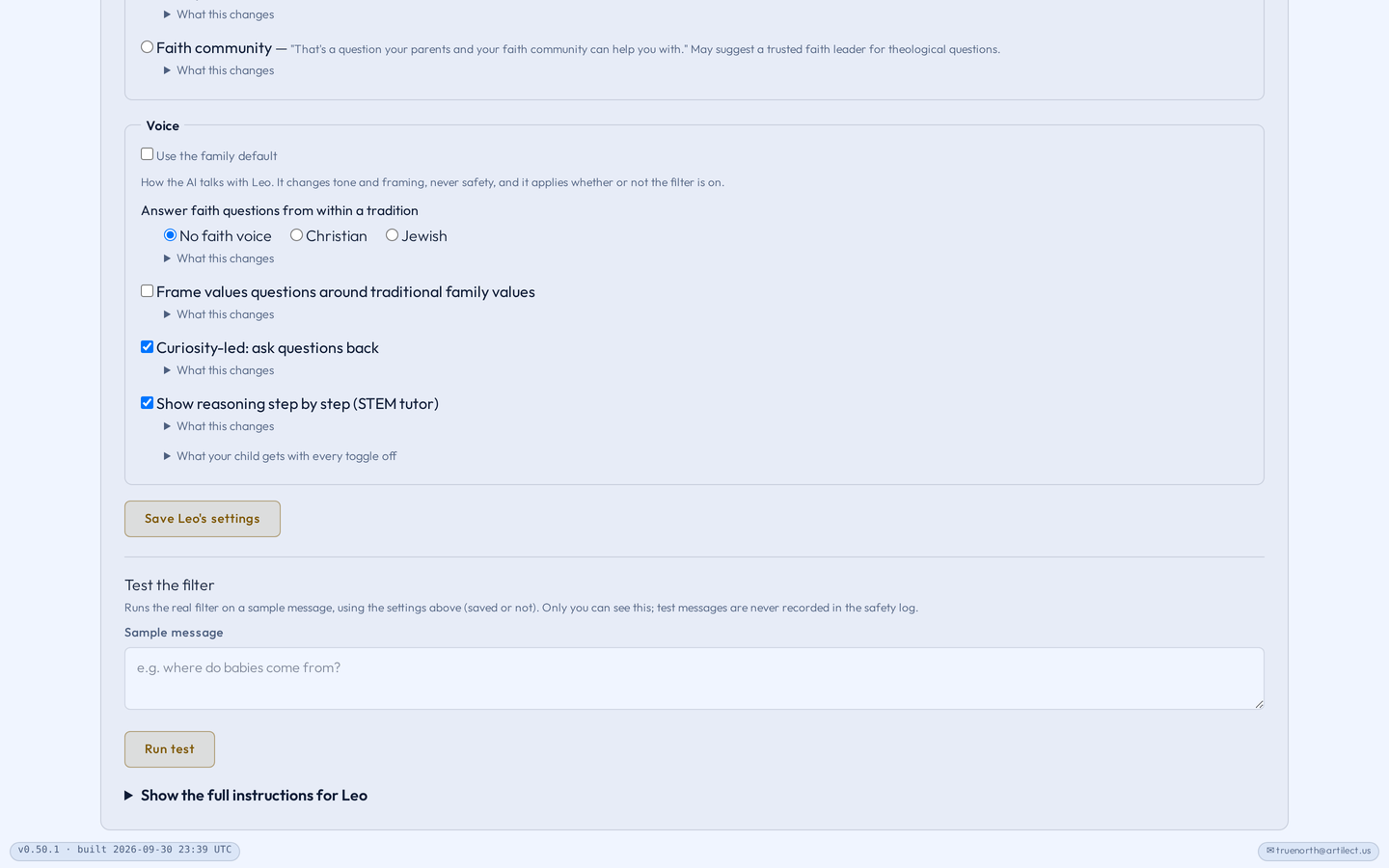
Voice shapes how the AI talks with your child. Combine any of:
- Answer faith questions from within a tradition, Christian or Jewish. “Why do we pray?” gets an answer from inside that faith.
- Frame values questions around traditional family values, without religious language.
- Curiosity-led: ask questions back. The AI asks what your child thinks before explaining.
- Show reasoning step by step (STEM tutor) for math, science and code.
With all of them off, answers take a balanced view. Voice changes tone and framing, never safety, and it applies whether or not the Safety filter is on.
The protections that remain
While the Safety filter is on, five areas stay protected for every child, whatever the preset, age or Voice: self-harm and suicide, abuse and grooming, eating disorders, dangerous challenges, and sexually explicit content. They show as locked rows. Turning the Safety filter off turns them off too, along with every other protection.
Protection does not always mean refusal: a response may offer support, suggest talking to you, or block. Abuse disclosures have a privacy boundary explained in Family Safety.
Choices and boundaries
Other per-child choices
- Picture ideas and finished pictures wait for your OK by default; change either on the child’s space page.
- Hold each message for my OK is off by default; see Family Safety.
- Allow this child to sign in on their own device is on the Family page.
- Supervised hand-off needs your guardian PIN to leave, which you set in the True North app on your phone.
What settings cannot promise
Settings shape what the AI is told; they are not proof that every model always follows them. Review your choices as your child grows.
Try it
Review one child’s settings: check their age, open one What this changes, and choose a Voice. Talk about those choices together.