Guide · Family Safety
Give them room to ask. Choose how you stay involved.
True North gives parents ways to guide a child’s AI use: a Safety filter, reading your child’s chats, a safety log, and optional message approval.
There is one important privacy boundary: while the Safety filter is on, if a child says an adult is hurting them, that conversation is kept private from every adult on the account. These tools support your involvement; they cannot guarantee safe or accurate answers.
What you can do
- Keep the Safety filter on so each child’s messages, and the answers they get, are checked.
- Read your child’s chats and the safety log, or narrow your view to the log alone.
- Hold each message for your OK, and hand over your device in supervised mode.
Before you begin
- Sign in as the parent and open the Family dashboard. This guide shows the web app with a fictional child.
- Age, topics and Voice are covered in Your Family’s Settings.
What the Safety filter does
The Safety filter checks every message a child sends before it reaches the AI, and checks the answer while it is written and again when it is finished. It is on by default for every child account. Adult accounts are not filtered.
The filter is the master switch. While it is on, five protections can't be unchecked by any setting. Switching the filter off turns those five off too, along with everything else on this page, disclosure detection included. You can turn it off; that is your choice, but it is a choice to turn every protection off.
Not every step the filter takes is a refusal:
- Blocked. Harmful how-to requests, sexually explicit content and dangerous challenges, plus any topics you choose to block. Your child sees a short message and isn’t told what was filtered.
- Suggested talking to you. For ages 6–13, topics you choose (such as where babies come from) get a warm note suggesting your child ask you.
- Answered with support. If your child sounds upset or unsafe, the AI answers with care and points to help, such as the 988 Suicide and Crisis Lifeline. It never refuses a child in distress.
If the answer check finds a problem the first check missed, the answer is stopped, or withdrawn if it has already finished. Your child sees “This answer was withdrawn by the safety filter.” and the safety log shows Answer withdrawn.
1Find your child’s space#
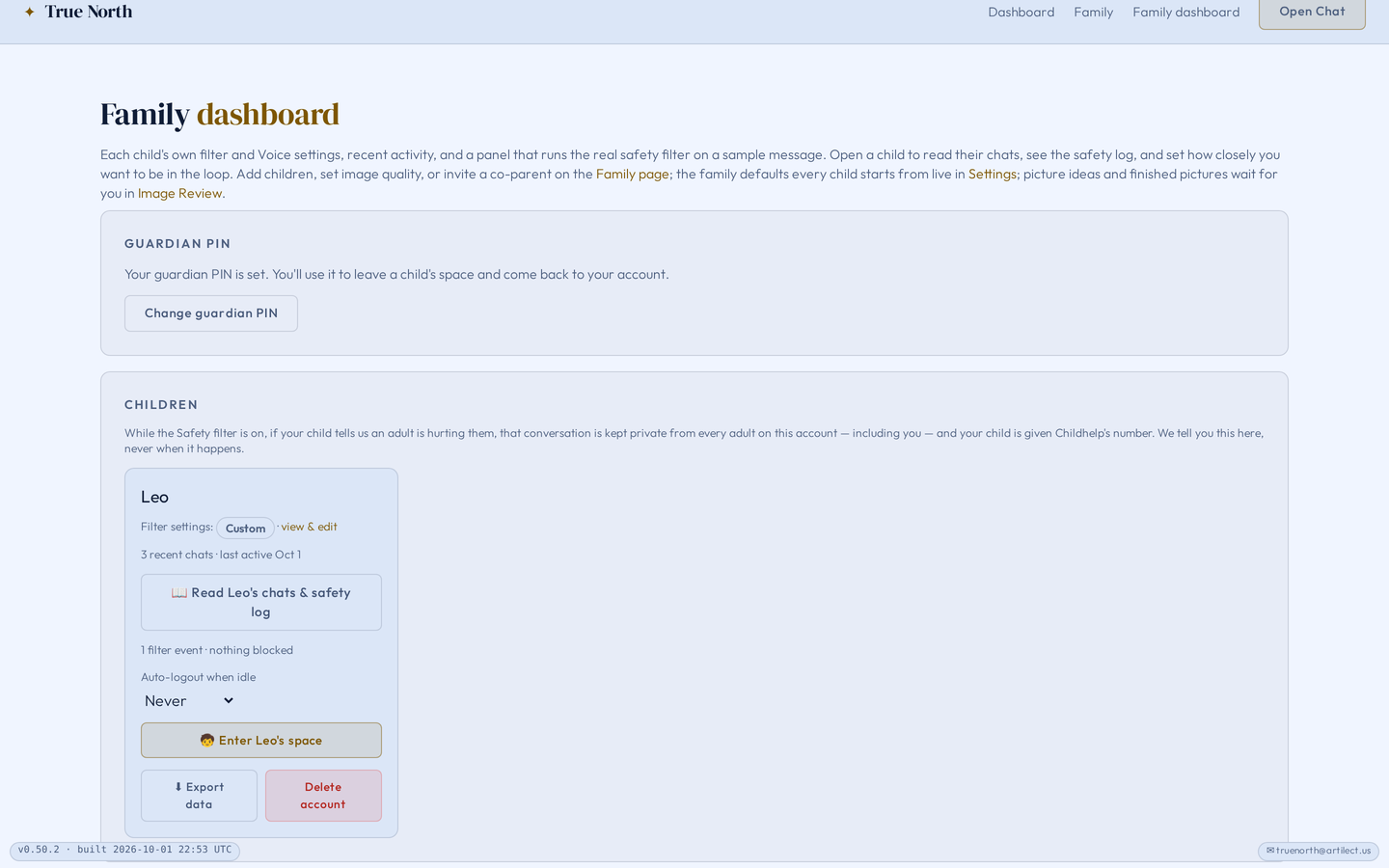
Open the Family dashboard. Each child has a card; choose Read {name}’s chats & safety log to open their space. Oversight can differ between children, so check the name before you change anything.
2Understand what you can see#
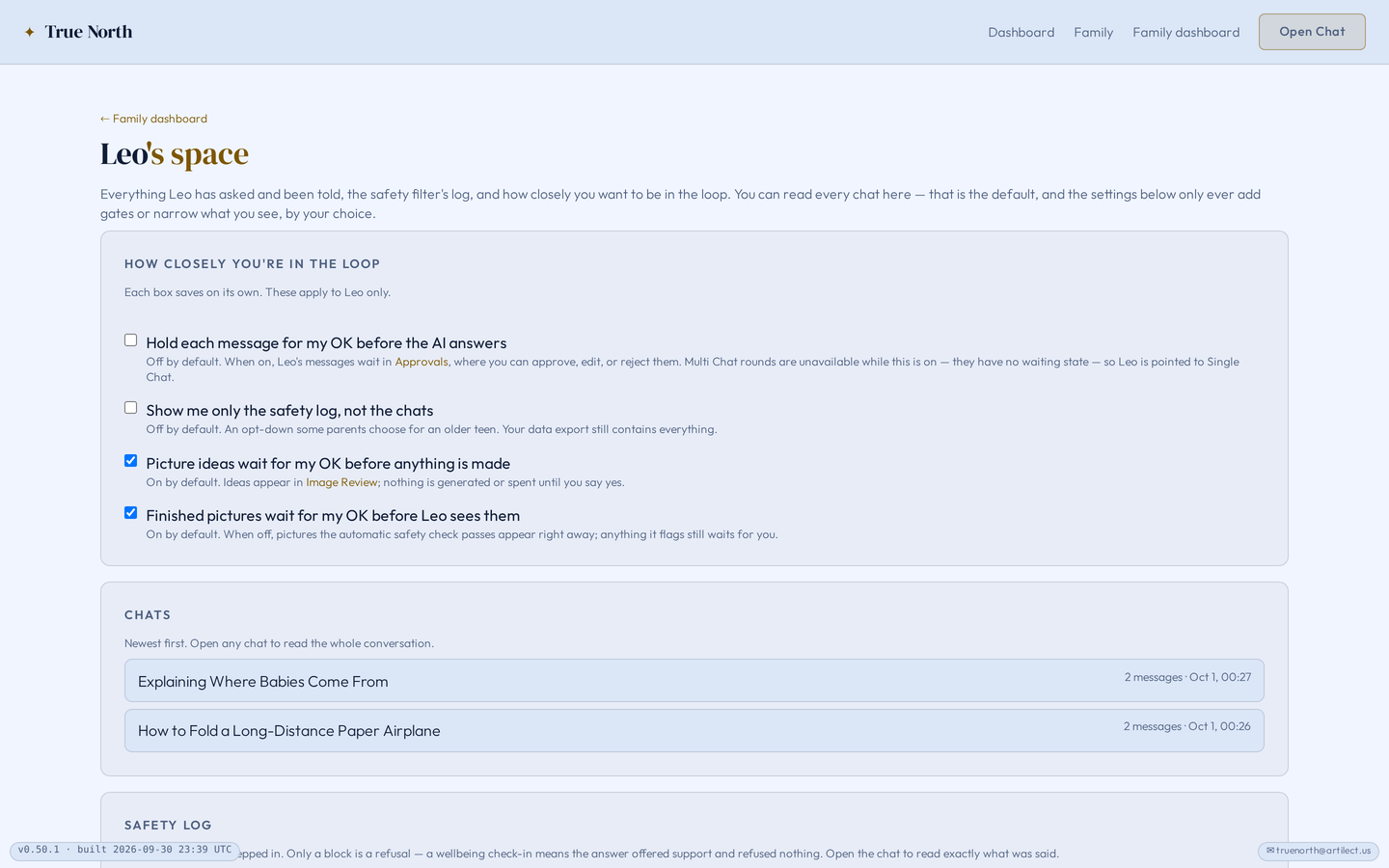
By default you can read every one of your child’s chats, with one exception: a conversation disclosing abuse is kept private from every adult (see step 4).
If you prefer less routine oversight, for an older teen perhaps, tick Show me only the safety log, not the chats. This narrows what you see on screen; your family’s data export still contains everything.
3Read the safety log#
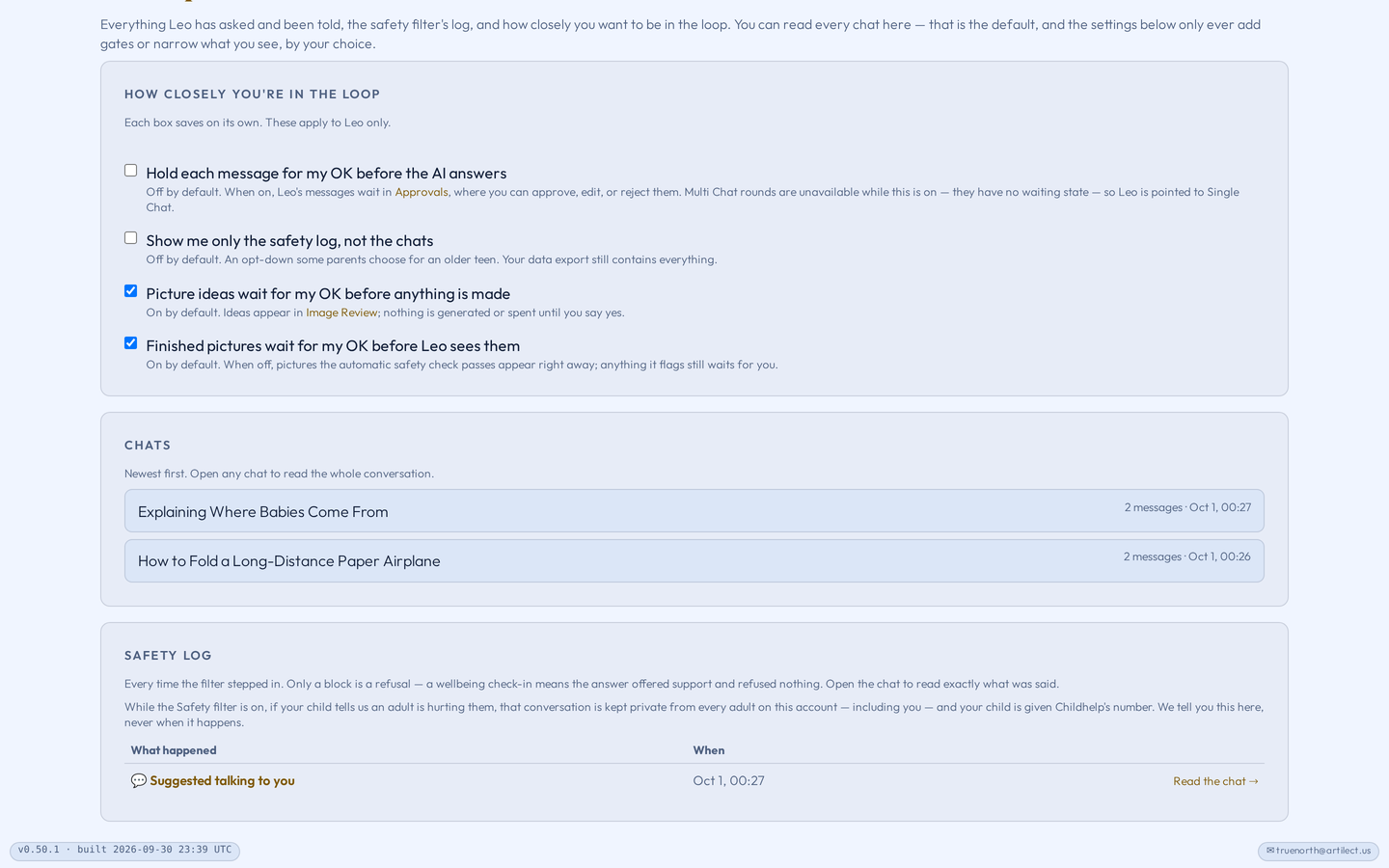
The safety log records each time the filter stepped in, newest first, with a link to the chat. Each entry names what happened: Blocked, Suggested talking to you, Wellbeing check-in, Answer withdrawn, Answer check unavailable, Safety check unavailable, Picture blocked or Document blocked.
Only the blocks are refusals. A check-in offered support; “Answer withdrawn” means the AI’s answer was stopped, not your child’s question. An empty log means nothing to show, not a guarantee about future answers.
4Know the private-disclosure boundary#
While the Safety filter is on, if your child tells us an adult is hurting them, that conversation is kept private from every adult on this account — including you — and your child is given Childhelp's number. We tell you this here, never when it happens.
It depends on True North recognising what your child said, and it is part of the Safety filter: if you turn the filter off, this protection is off too. More under Choices and boundaries.

5Hold messages for your approval#
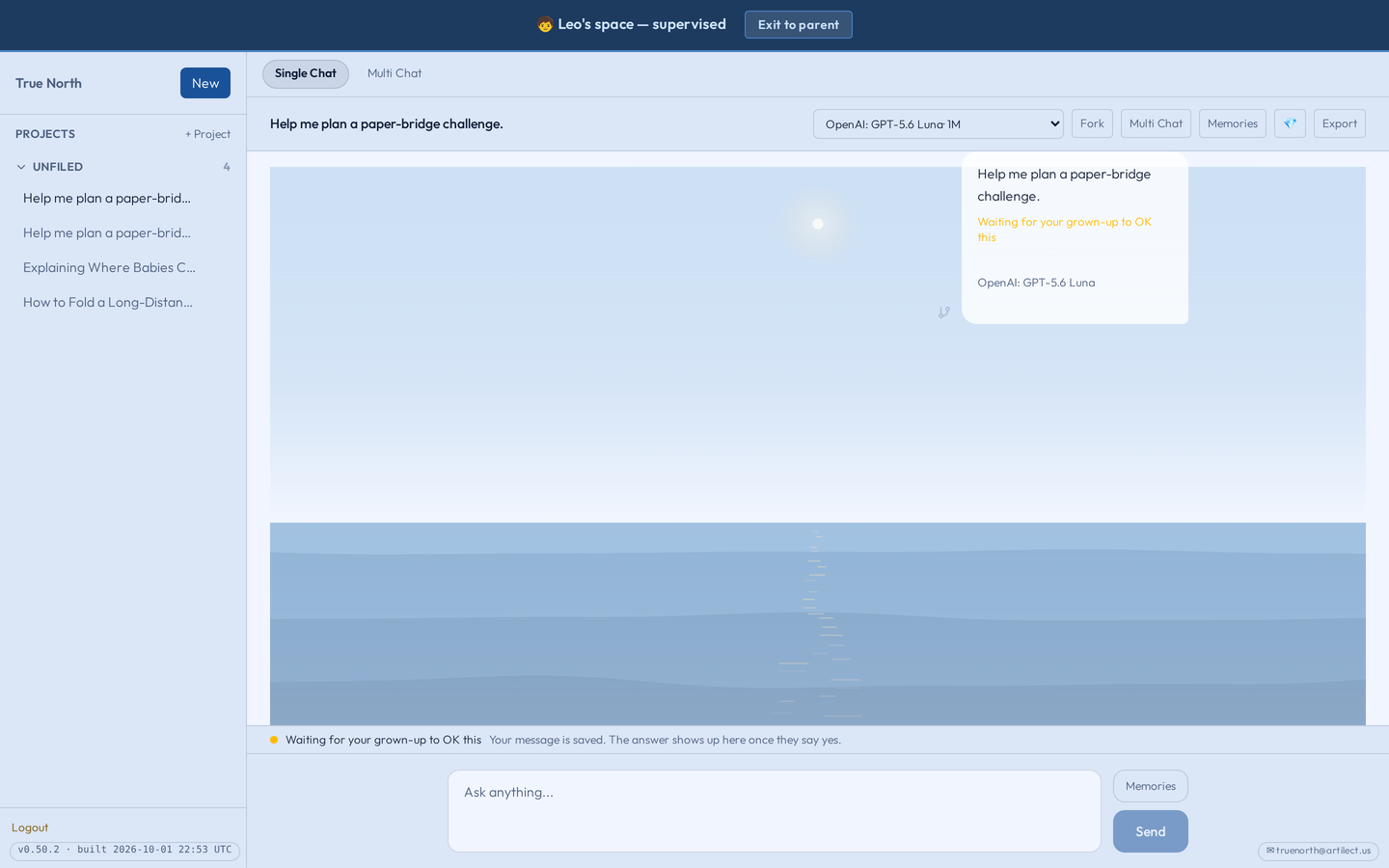
Tick Hold each message for my OK before the AI answers. It is off by default. Your child’s message then waits, marked “Waiting for your grown-up to OK this”, until you decide.
While the hold is on, Multi Chat is unavailable to that child; they use Single Chat.
6Review a waiting question#
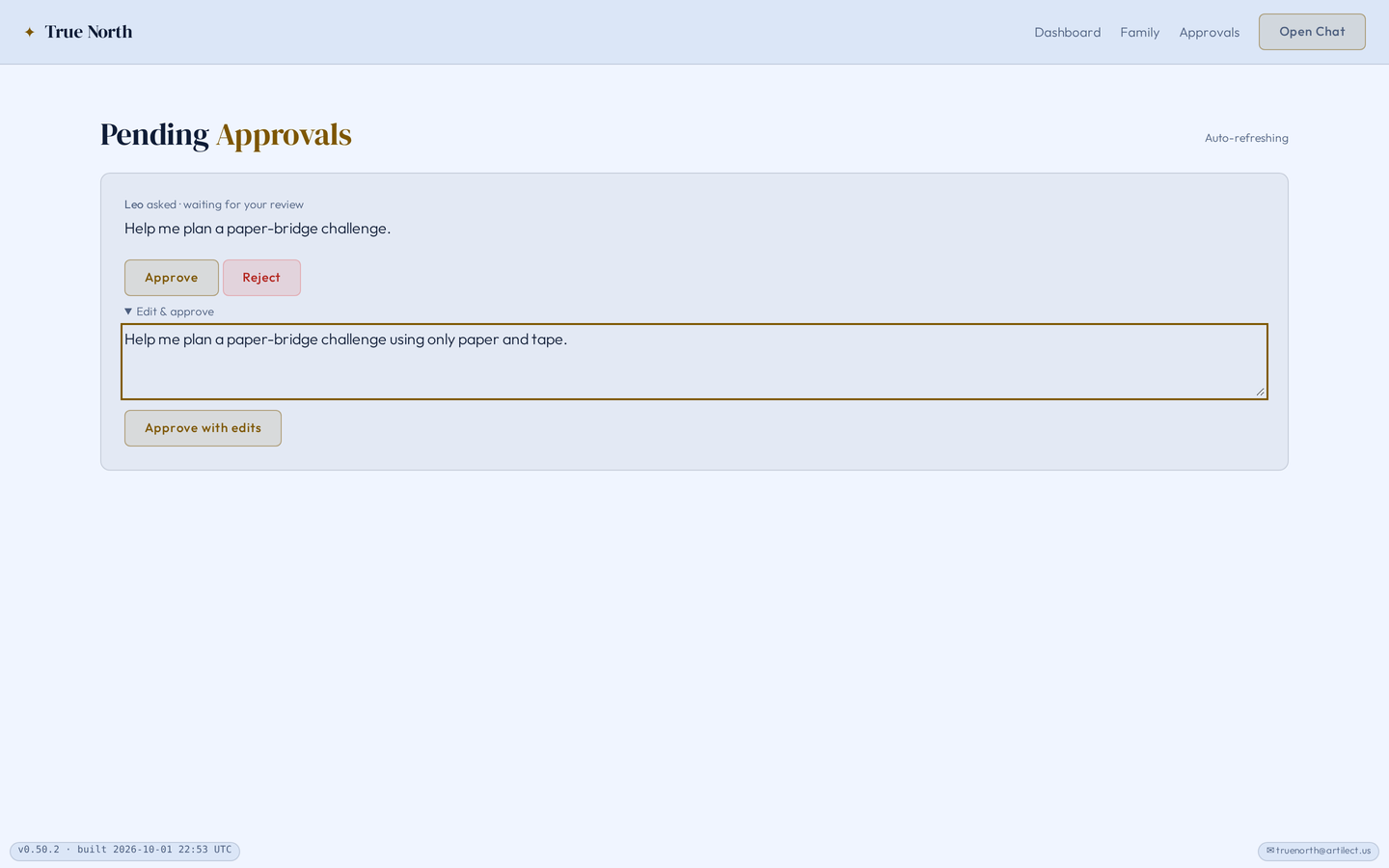
Open Approvals. You can Approve, Reject, or use Edit & approve to change the wording first.
Edit & approve replaces your child’s wording with yours. The chat then shows your version, and it is not marked as edited. If you change their words, tell them what you changed and why.
7Hand over your device deliberately#
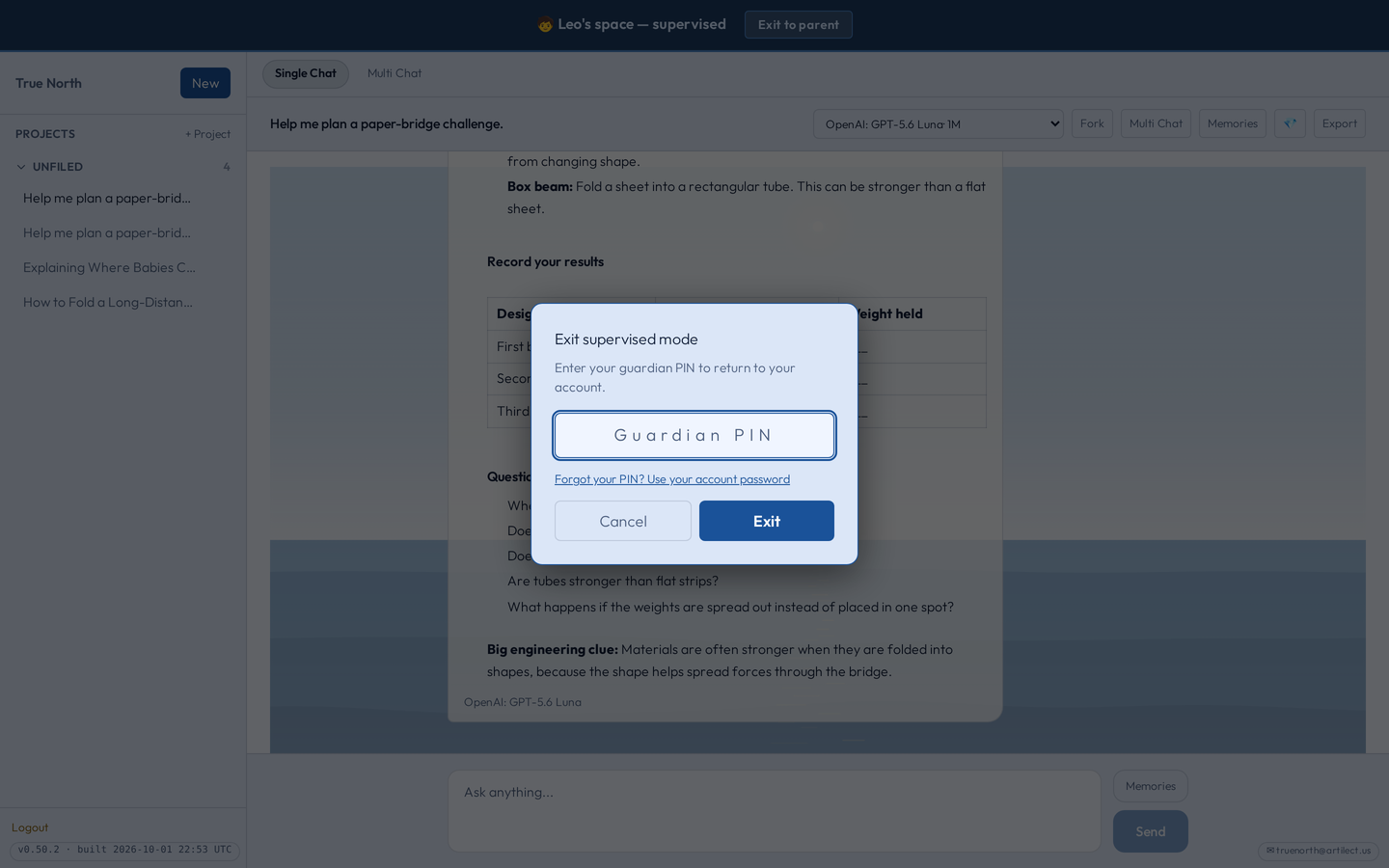
Choose Enter {name}’s space on the child’s card to hand your device over. Your own sign-in is set aside, and returning to the parent account requires your guardian PIN: choose Exit to parent in the banner at the top of the screen.
This is different from a child signing in with their own PIN, which ends with a plain exit.
Choices and boundaries
What the filter cannot do
AI classifiers make mistakes in both directions: something you’d allow may occasionally be blocked, and something you’d block may occasionally get through. The filter works per message, in English best of all, and it cannot see other apps or the web. Treat it as one layer of supervision, alongside you.
Private disclosures
A conversation disclosing abuse is not in the chat list, the safety log, Approvals or the data export, and it cannot be unhidden. Your child is told they are not to blame and pointed to a trusted adult outside the situation, such as a teacher. A message hold never catches it: it is answered with support instead of waiting. If your child is upset without describing abuse, you still see a Wellbeing check-in.
Turning the filter off
The switch is under Settings, and turning the filter off turns all of this off too, for every child in the family: the five protections, blocks, redirects, the answer check and disclosure detection. Voice still applies either way.
How it works
- Tidy the message. Tricks such as “s3x” or hidden characters are undone.
- Classify it. A fast AI classifier reads the message with your child’s age and your family’s choices, and decides: answer normally, answer with care, suggest talking to you, or block.
- Guide the answer. When care or a redirect is needed, the answering AI gets instructions on how to respond.
- Check the answer. The answer is checked while it streams and once more in full.
If the classifier can’t run, the message is held back rather than sent unfiltered, and the safety log shows Safety check unavailable. The final answer check is best effort: if it can’t run in time, the answer is delivered and the log shows Answer check unavailable.
Nothing here is hidden from you. In your child’s settings, every box has What this changes, the exact instructions it adds, and Show the full instructions displays everything the AI and the classifier receive. See Your Family’s Settings.
Start together
Explain the oversight you chose and the private-disclosure boundary before the first conversation. Then try an ordinary question together.