Guide · Kids’ Image Studio
An idea you can make together.
Kids’ Image Studio gives your child a place to describe the pictures they imagine, with you involved along the way. With the default settings, you approve the idea before generation and the finished picture before your child sees it.
In this walkthrough, we follow one idea from a child’s studio to their gallery. Our fictional child is Leo, age nine.
What you can do
- Let your child turn their own ideas into pictures, one idea per line.
- By default, say yes or no to each idea, and to each finished picture before your child sees it.
- Let your child keep the pictures they like in My Gallery, or ask for a change.
Before you begin
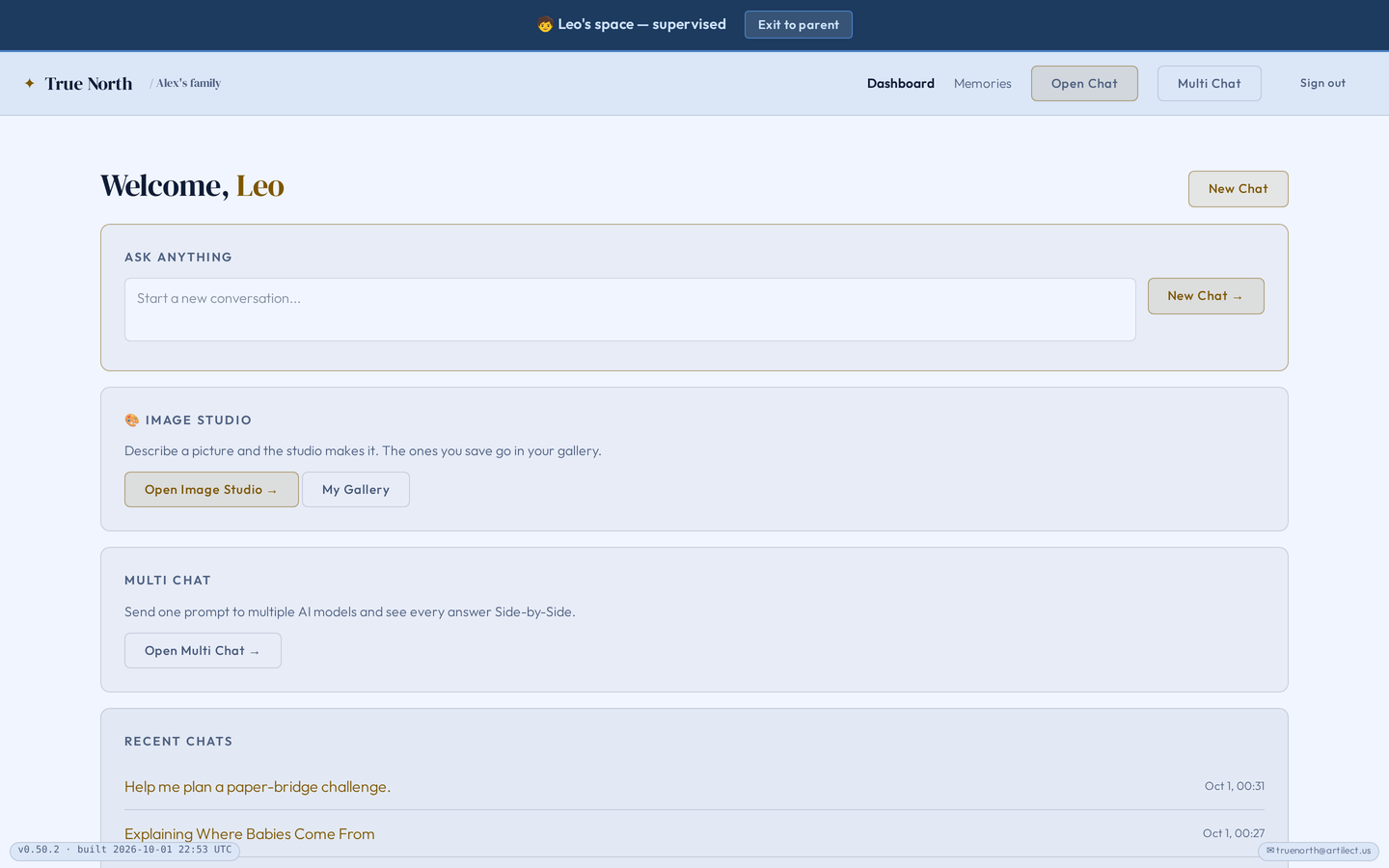
- Image Studio is for child accounts. Add your child on the Family page first. Your child opens it with Open Image Studio on their home screen; on the web it is at truenorthfamily.ai/images.
- You review ideas and pictures on Image Review, linked from your Family dashboard.
- Picture creation uses the parent’s available balance; children do not make purchases.
1Check the two review settings#
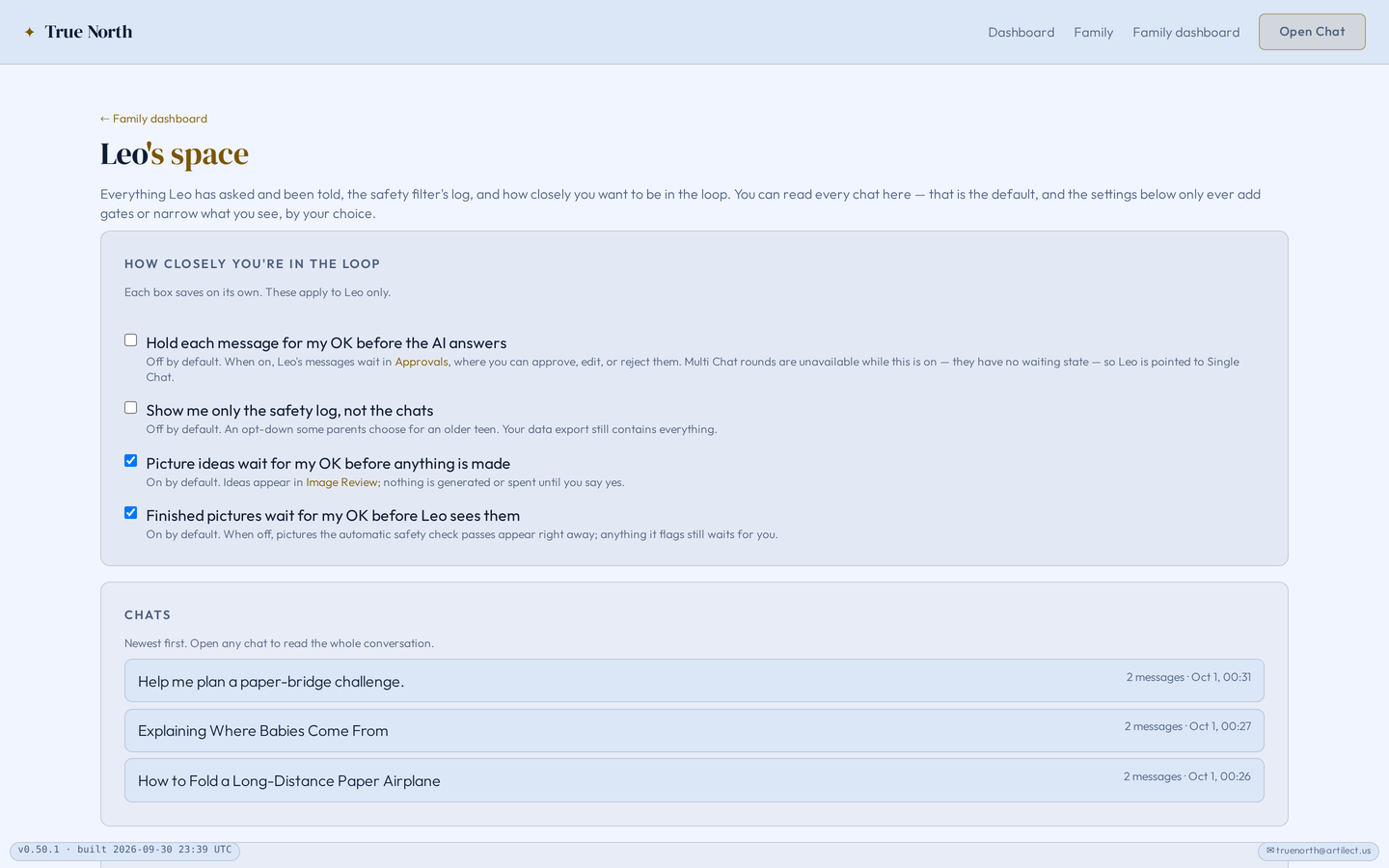
Open your child’s page from the Family dashboard. There are two separate choices:
- Picture ideas wait for my OK before anything is made
- Finished pictures wait for my OK before your child sees them
Both are on by default, and you set them for each child. Keep both on to follow this walkthrough.
2Let your child describe an idea#
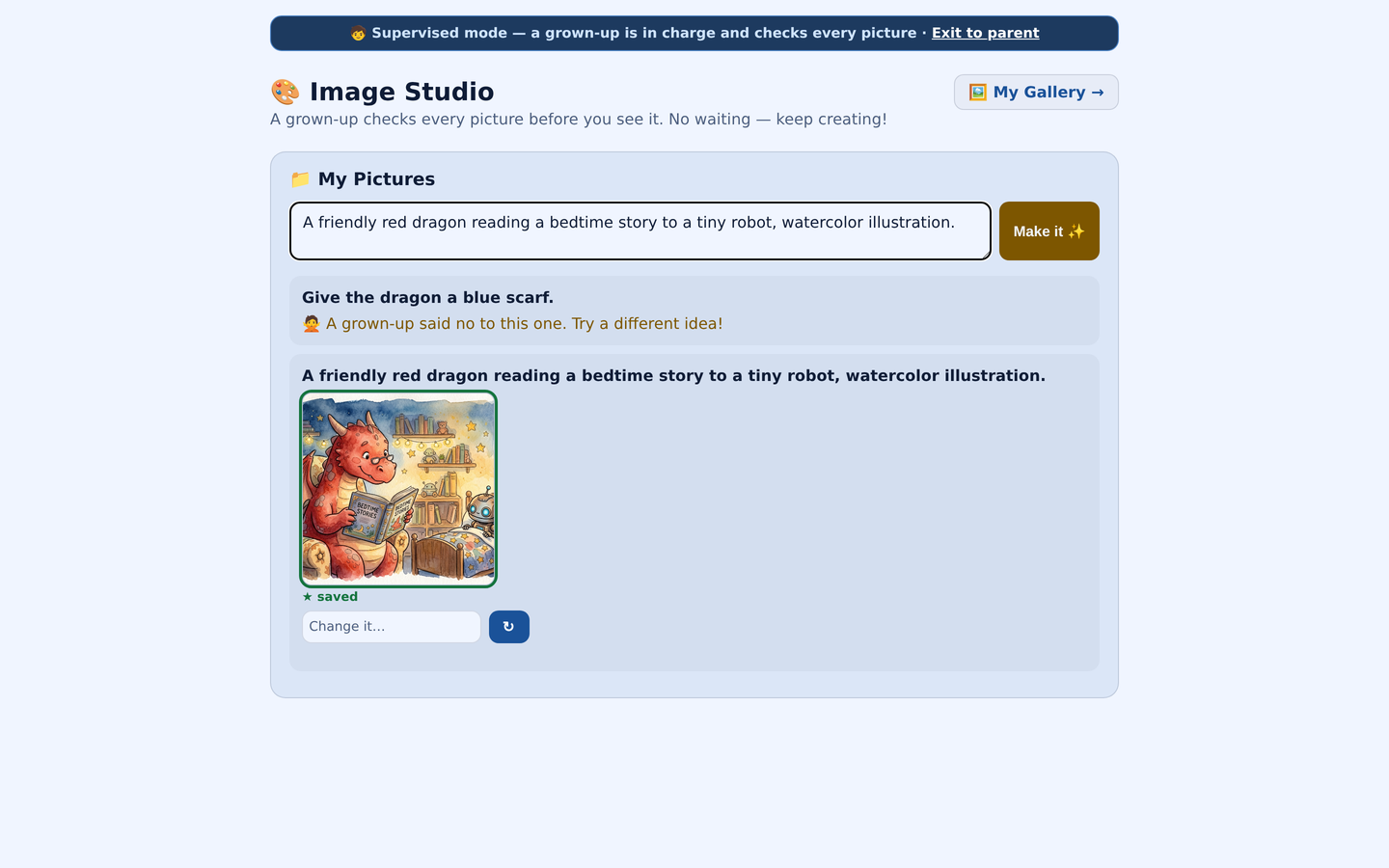
In Image Studio, your child types what they would like to see; each line is its own idea. Leo asks for:
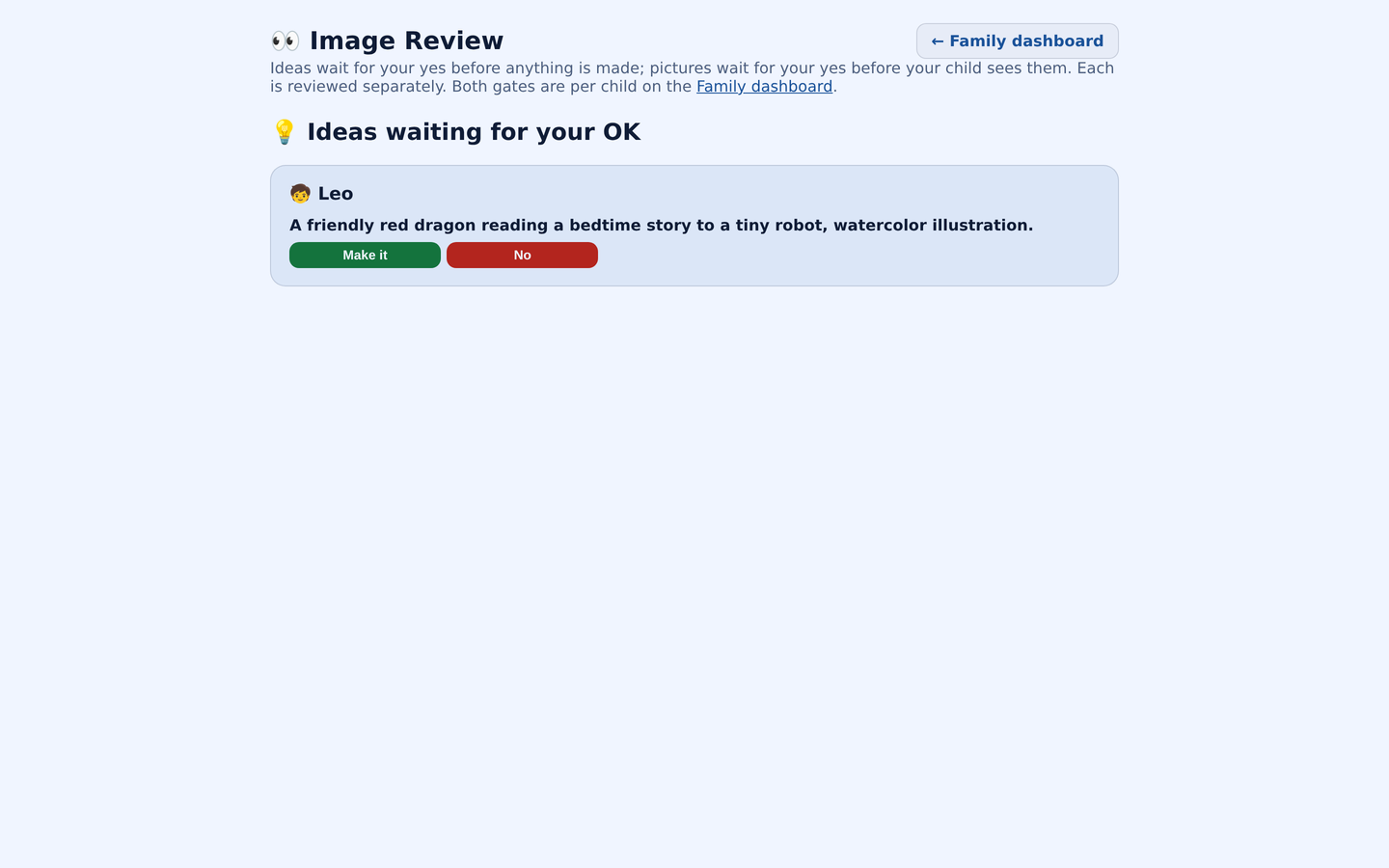
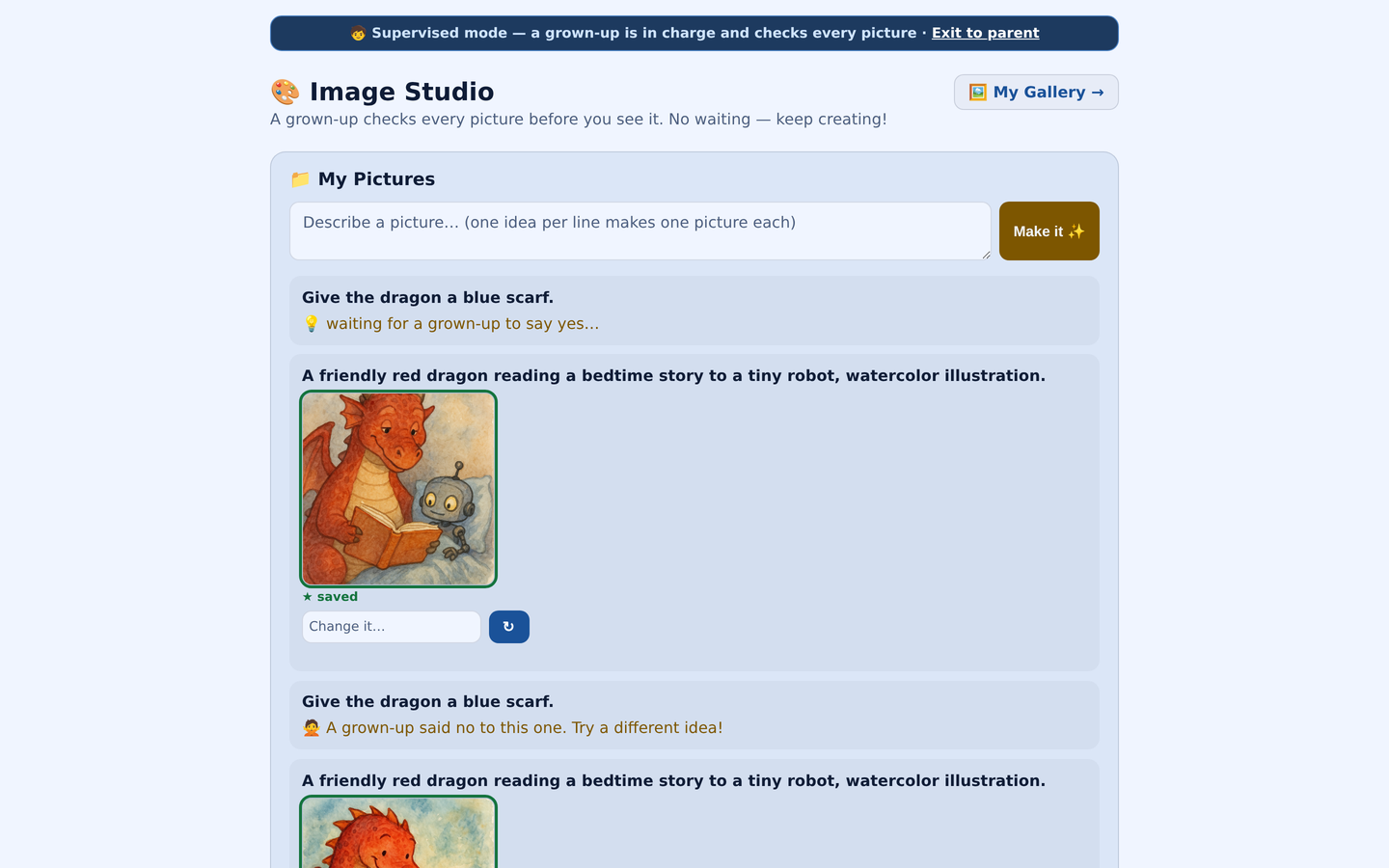
A friendly red dragon reading a bedtime story to a tiny robot, watercolor illustration.
Your child opens the studio from Open Image Studio on their home screen and sends the idea with the studio’s own Make it ✨ button. An automatic safety check reads the idea first and turns away one that isn’t allowed, before it ever reaches you.
3The idea waits for you#
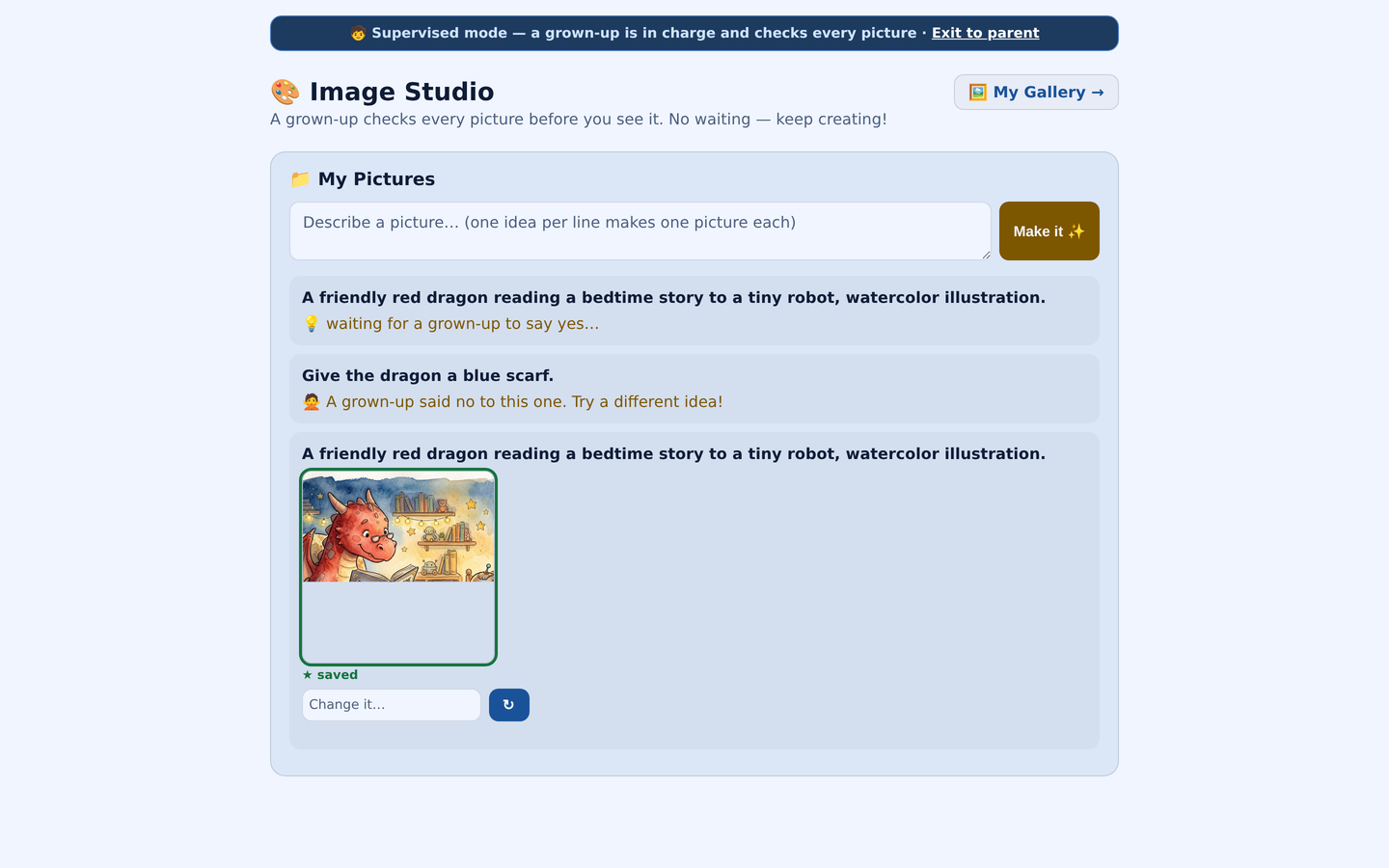
In your child’s studio, the idea now reads “waiting for a grown-up to say yes…”. With the idea setting on, nothing has been made and nothing has been spent.
True North doesn’t send you an alert. Open Image Review to see what is waiting.
4Decide whether to make it#
Under Ideas waiting for your OK, read the idea in your child’s own words. Choose Make it to start making the picture, or No to decline it.
A declined idea is never made and costs nothing; your child sees that a grown-up said no. Saying yes to the idea doesn’t approve the picture in advance.
5Review the finished picture#
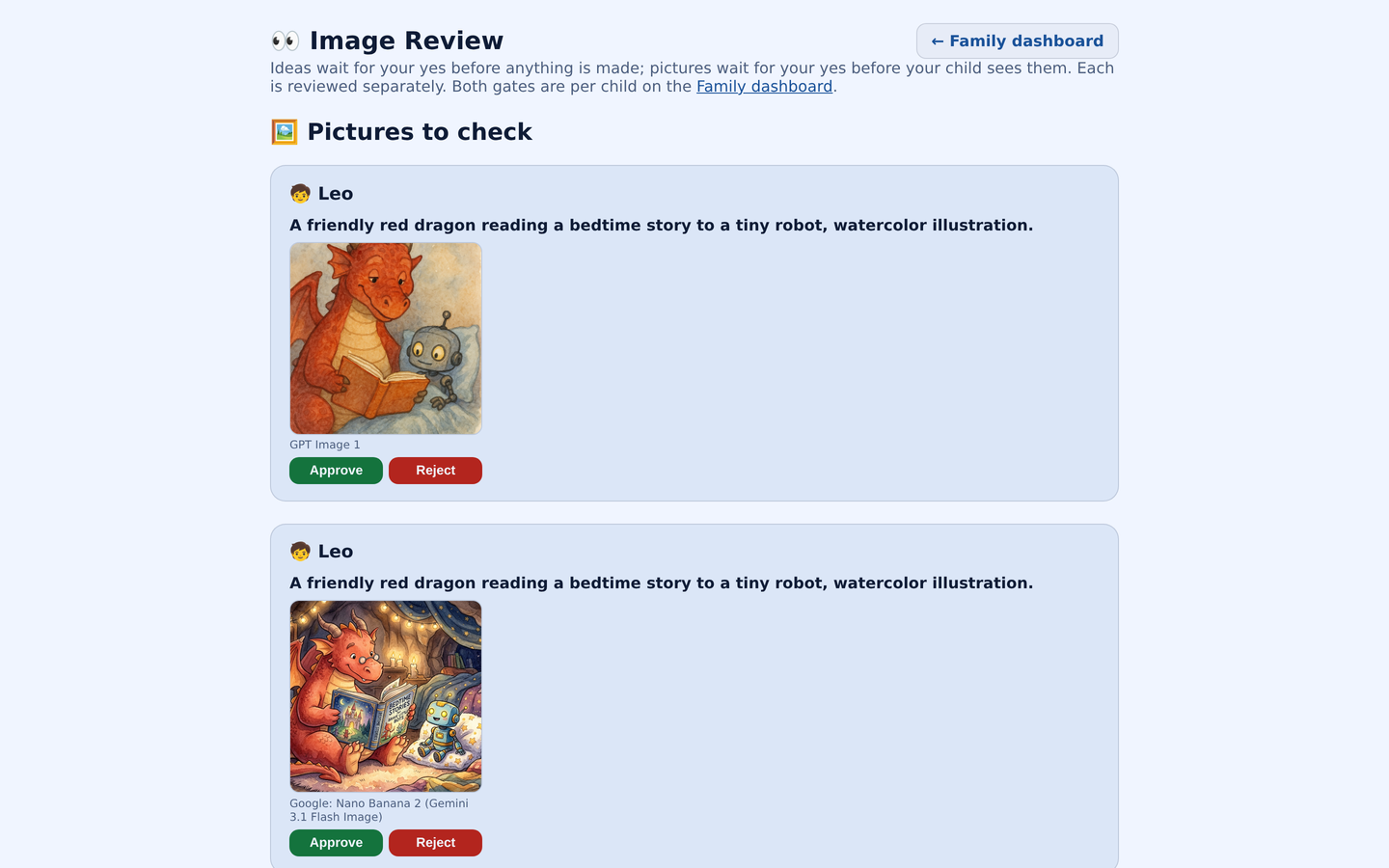
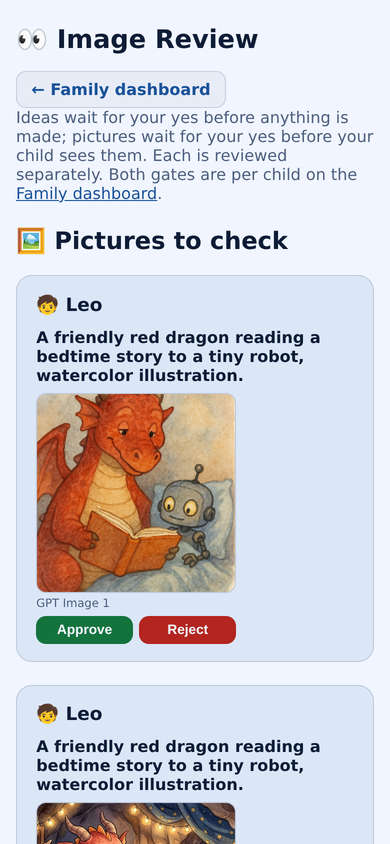
When the picture is ready, it appears in Image Review under Pictures to check. Meanwhile your child’s studio says it is being worked on, and the picture stays out of their view.
An idea can come back as more than one picture. Each one is approved separately: choose Approve for a picture you want your child to see, or Reject. If the automatic check flagged a picture, Image Review marks it so you can look closely. A suitable idea can still produce an unexpected result, which is why this second decision matters.
6Let your child keep a favorite#
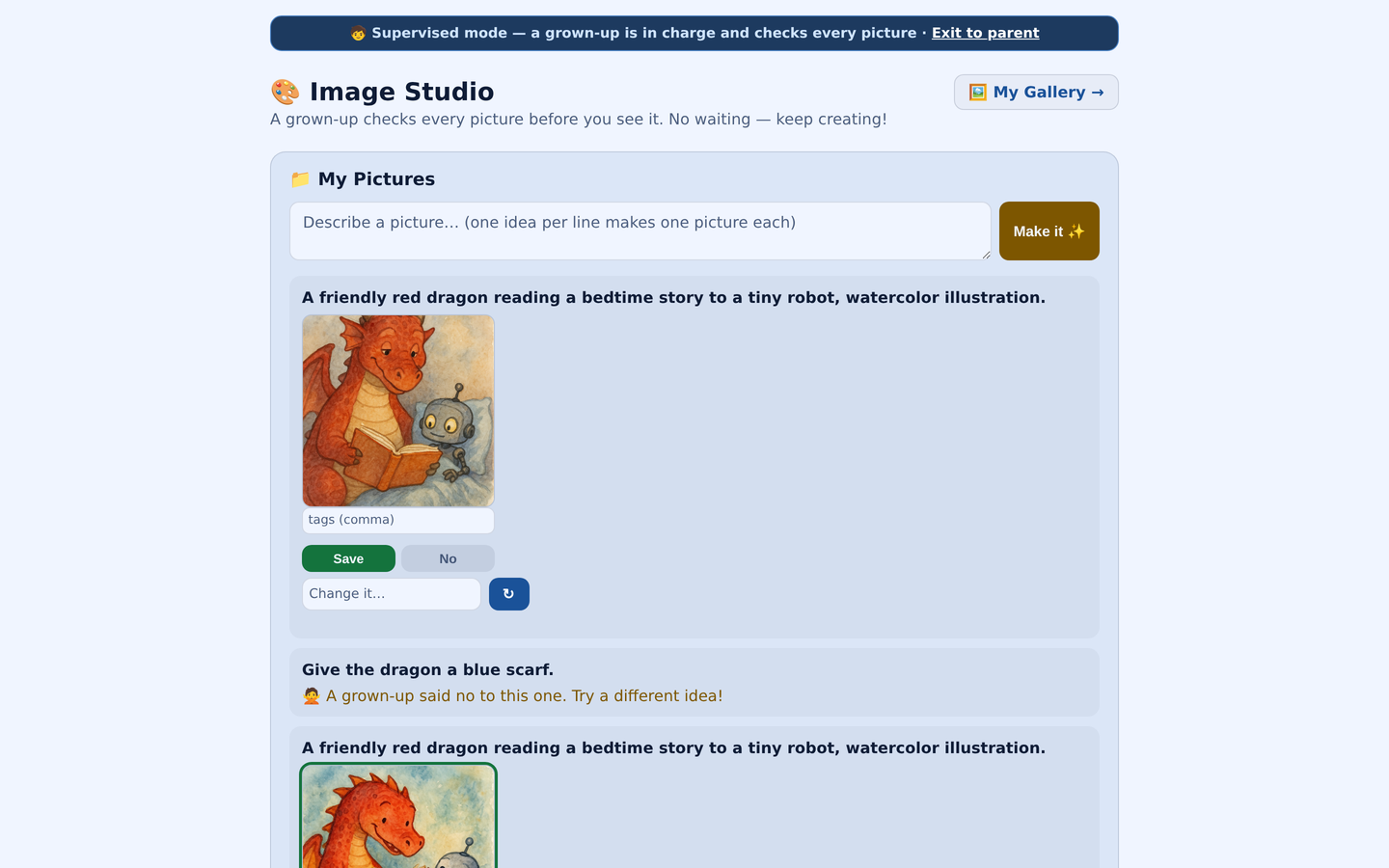
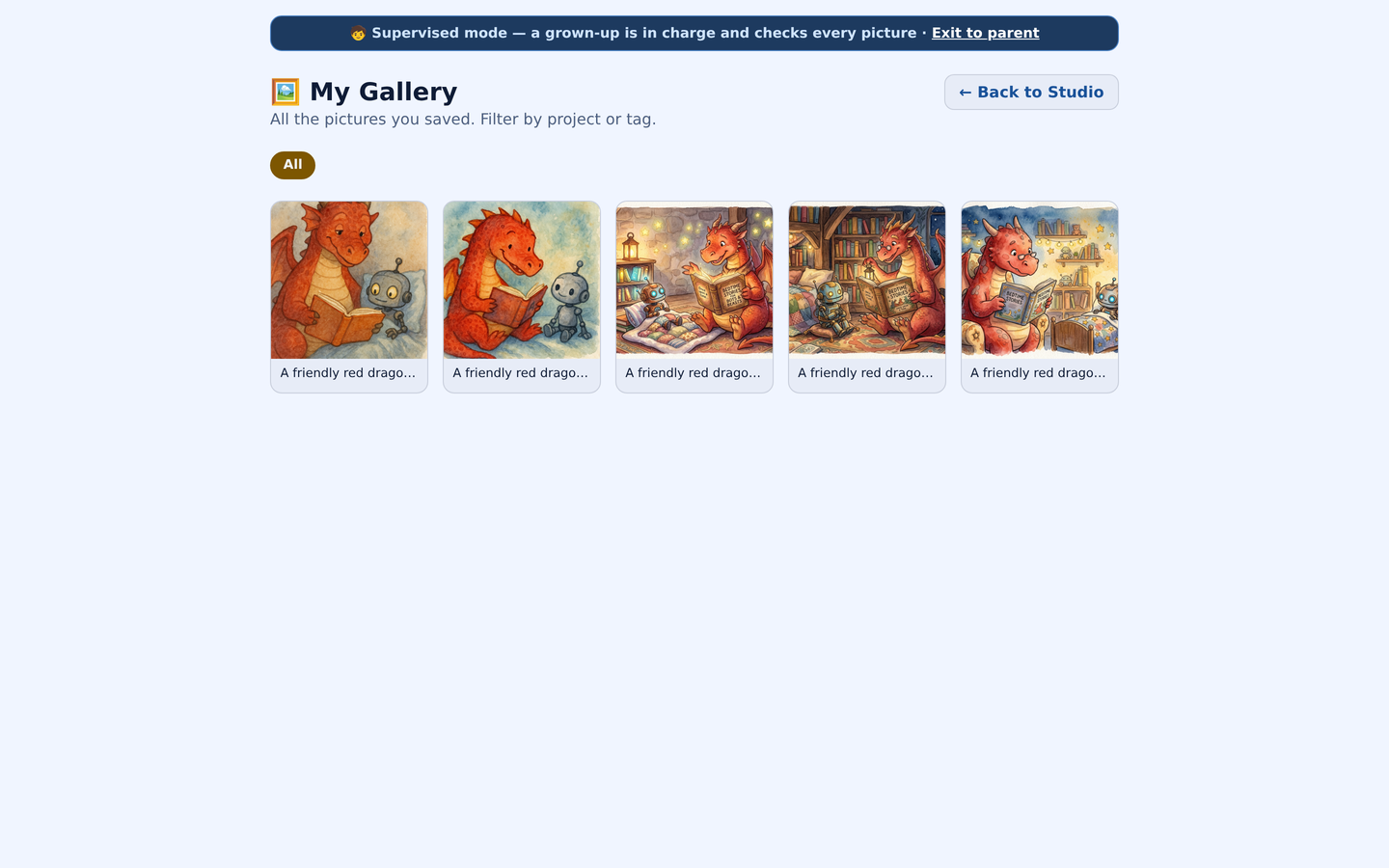
Once you approve it, the picture appears in your child’s studio. Your child can choose Save to keep it in My Gallery, No to pass on it, or type in the Change it… box.
My Gallery holds the pictures your child saved, sorted by project or by tags they add when saving.
7Try a new direction#
To change a picture, your child types in the Change it… box, for example:
Give the dragon a blue scarf.
The change is a new idea. It goes through the automatic check and your review settings again, marked in Image Review as a follow-up to an earlier picture.
Choices and boundaries
Turning a review step off
With the idea setting off, an idea that passes the automatic check is made straight away. Ideas already waiting stay in Image Review until you decide. With the picture setting off, pictures that pass the automatic safety check show up as soon as they are made, and one the check flags is held back from your child. The studio tells your child which applies.
Automatic checks
The automatic checks help, but neither they nor your review guarantee every result will be suitable.
Who reviews
Ideas and pictures go to the Image Review of the parent account that added the child.
Limits
A child can have only a few ideas and pictures in progress at once, and there is a daily picture limit. Ideas and pictures waiting for you count, so reviewing them keeps the studio moving.
Cost
A declined idea costs nothing. A picture is paid for from the parent’s balance when it is made, whether or not you approve it, and your family’s spending limits apply. On the Family page you can choose each child’s image quality; Drafts, fast and economical, is the default.
Try it together
Start with one character doing something unexpected. Talk about the idea, review the result, and let your child decide whether to keep it.