Guide · Multi Chat
See more sides of the answer.
Multi Chat lets you ask several AI models the same question. Compare their responses, examine the differences, and decide what deserves a follow-up.
In this walkthrough, we plan a family paper-bridge challenge. You can use the same steps with a question of your own.
What you can do
- Put one question to several AI models and read their answers side by side.
- Ask the models to critique one another, see where they agree, and bring their answers together in one.
- Keep going with every model or just one, or carry chosen results into a focused discussion.
Before you begin
- Sign in to an adult account and choose Multi Chat in the switcher at the top of any chat.
- The lineups available to you depend on your plan. The free trial runs Basic. Mega (OpenAI · Anthropic · Google), Medium and Wildcard (Grok · DeepSeek · Qwen) are part of Plus, and show “Part of Plus” on a trial account.
1Choose a lineup and ask your question#
Choose a lineup, then type your question. A preset gives you a starting selection of models; choose Custom if you want to pick them yourself. For our example:
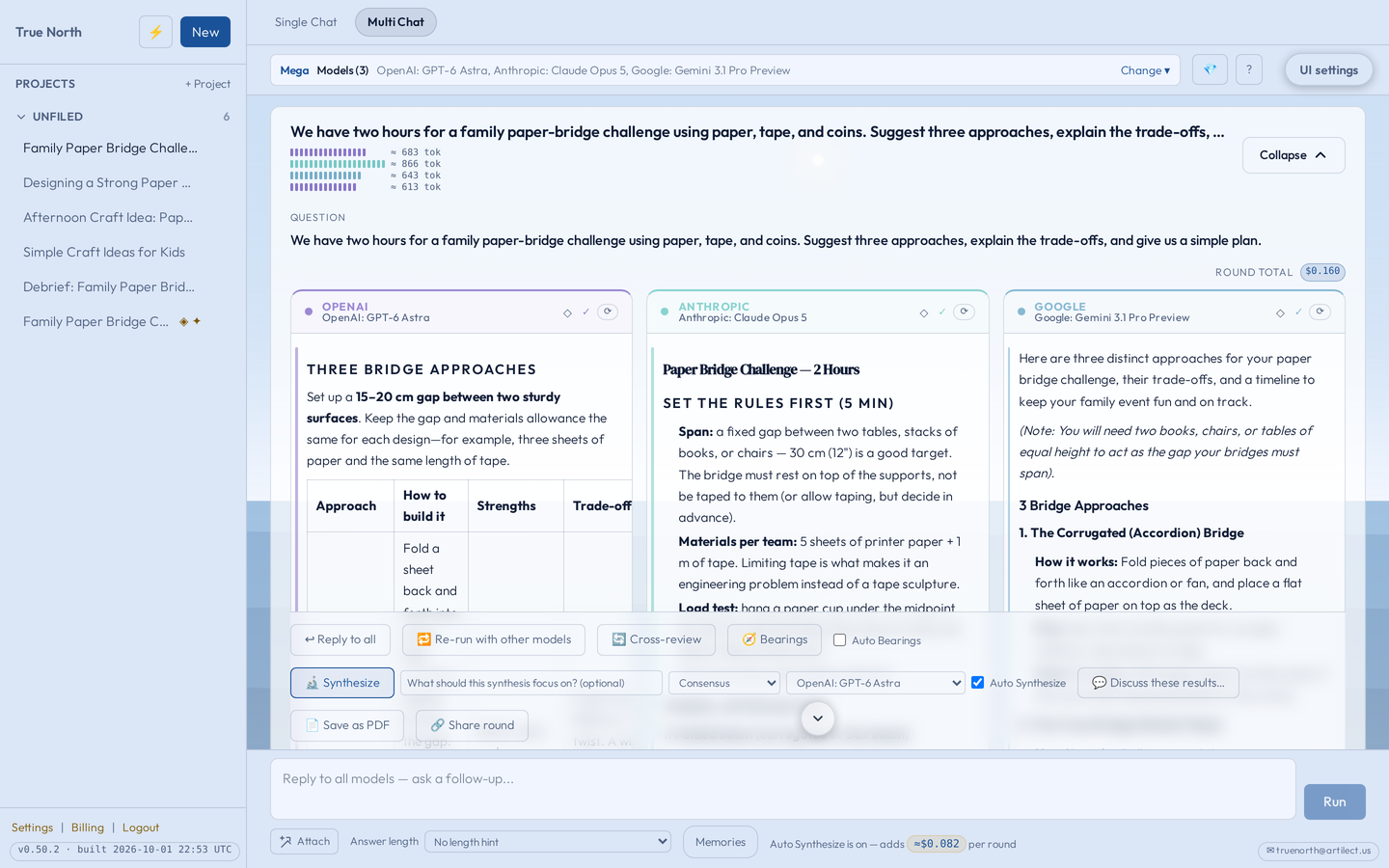
We have two hours for a family paper-bridge challenge using paper, tape, and coins. Suggest three approaches, explain the trade-offs, and give us a simple plan.
Check the estimated cost of the round before sending. Once there is enough recent data, the typical time a round takes (for example, “~6s”) appears next to it. The final cost can differ from the estimate.
Synthesize is switched on by default, so a combined answer arrives automatically after the models finish. You can switch it off before sending.
Saved memories can come with your question: pick them with Memories beside the message box, and each model in the round gets the same ones.

2Compare the answers#
After you send, each selected model answers the question. On a larger screen the responses appear in columns; on a phone, you move between tabs.
Look for a useful difference. Did one answer notice a practical constraint? Did another suggest a simpler starting point? You do not need to choose a winner to find something worth exploring.
3Ask the models to review one another#
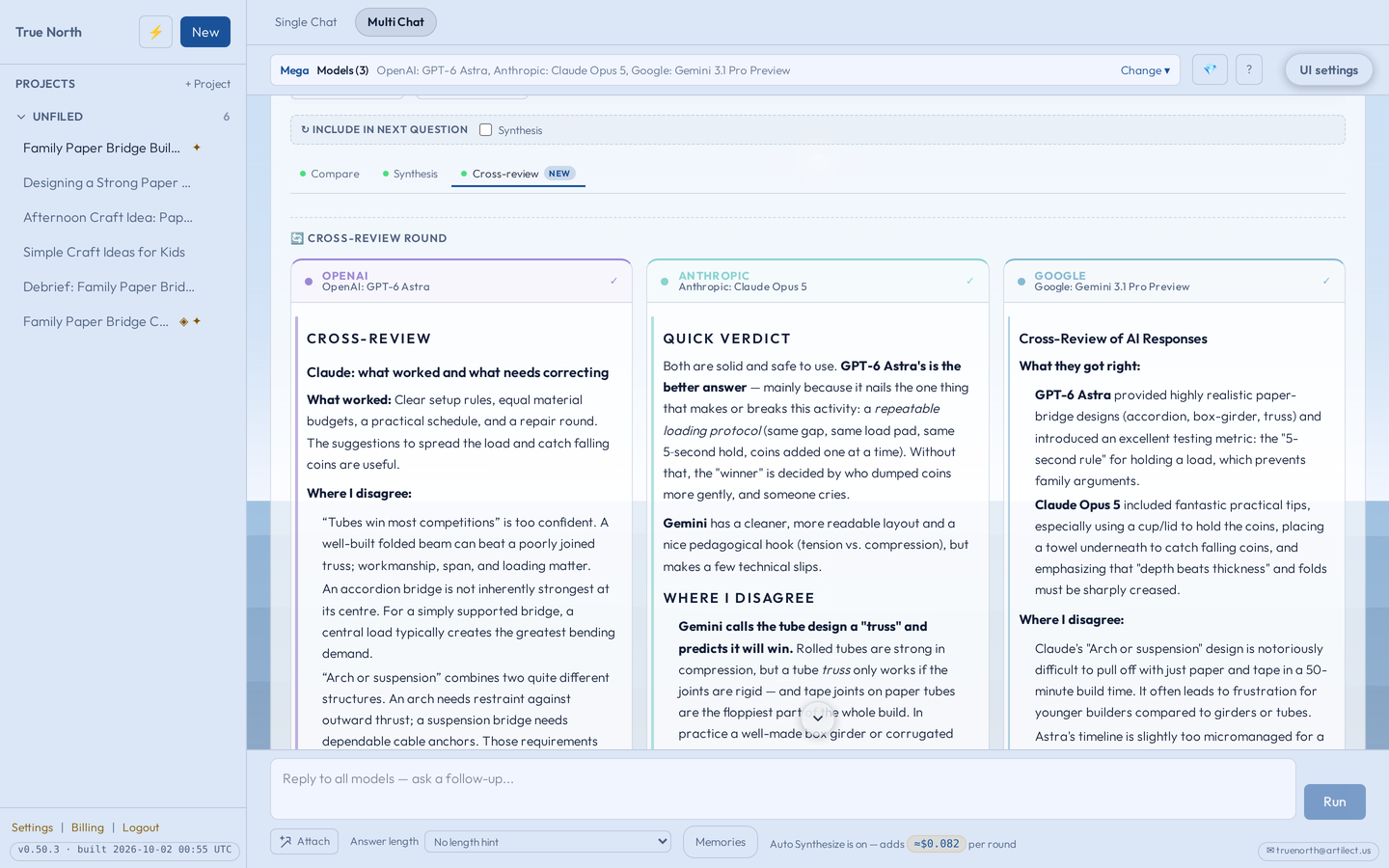
Choose Cross-review to ask each model to critique the other models’ answers. A model never reviews its own. The critiques arrive as a new round, and the original responses stay where they were, so you can read both.
A critique can help you spot an omission or question an assumption. It is still an AI response, so assess the reasoning yourself.
4Find where the answers agree#
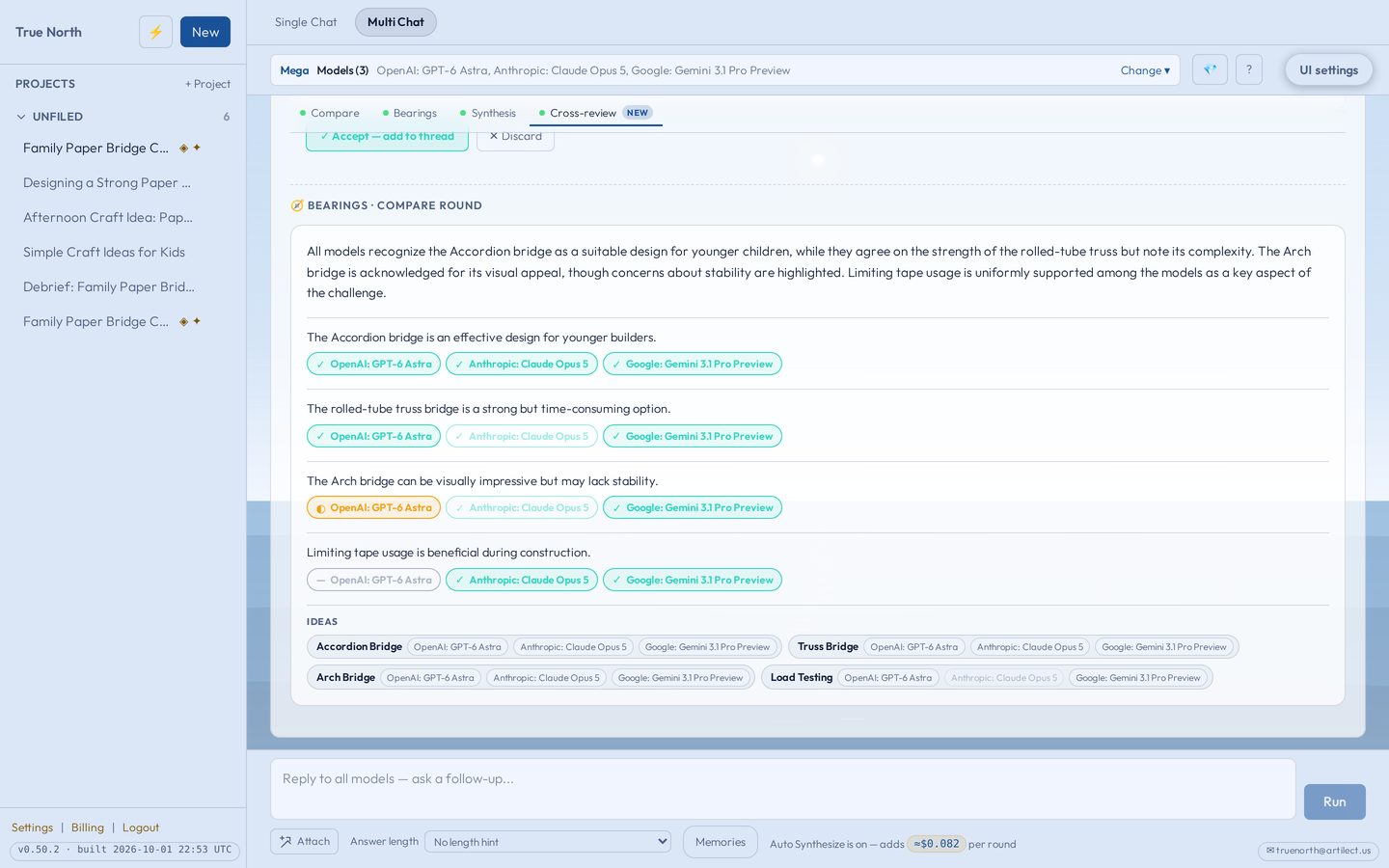
Choose Bearings for an agreement map of the finished round. For each claim, it shows which models agreed, which only partly agreed, and which disagreed or stayed silent, with quotes from their answers.
Bearings describes the answers already given; it does not ask the models again. Cross-review asks them for new critiques. Neither is independent fact-checking, and models can share the same mistakes.
5Bring the perspectives together#
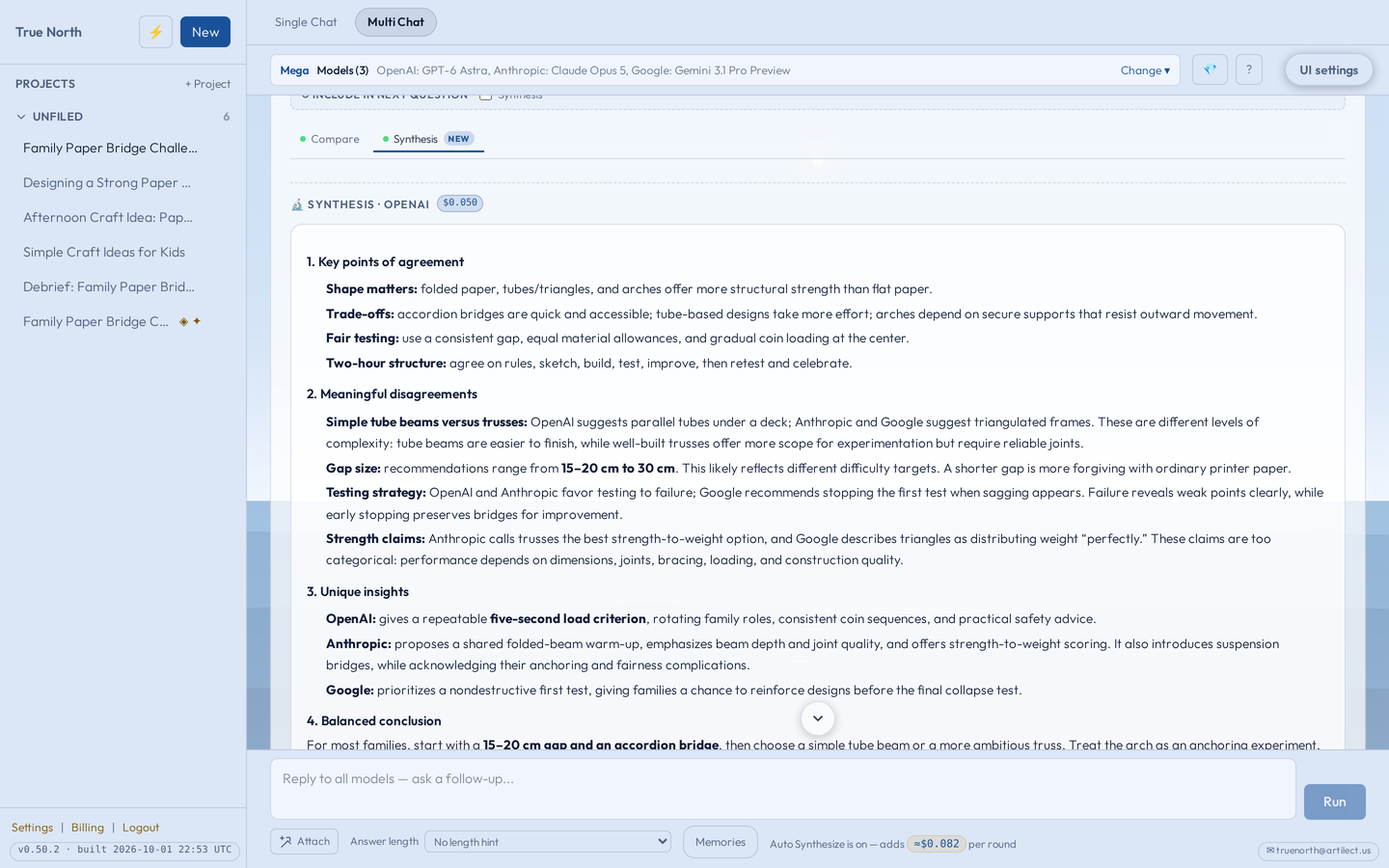
Because Synthesize is on by default, the round’s combined answer appears once every model has finished. It stays in the conversation, so you can come back to it. Read it with the original responses in mind, especially where they disagreed.
It can be a useful place to find a starting plan for the paper-bridge challenge. It does not mean every difference has been resolved.
6Continue the question#
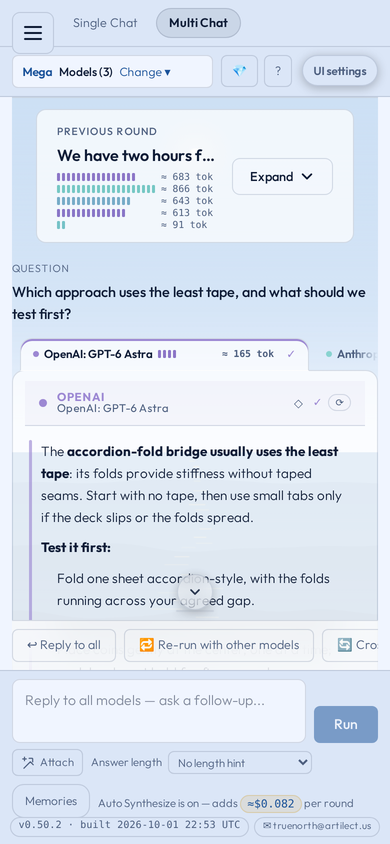
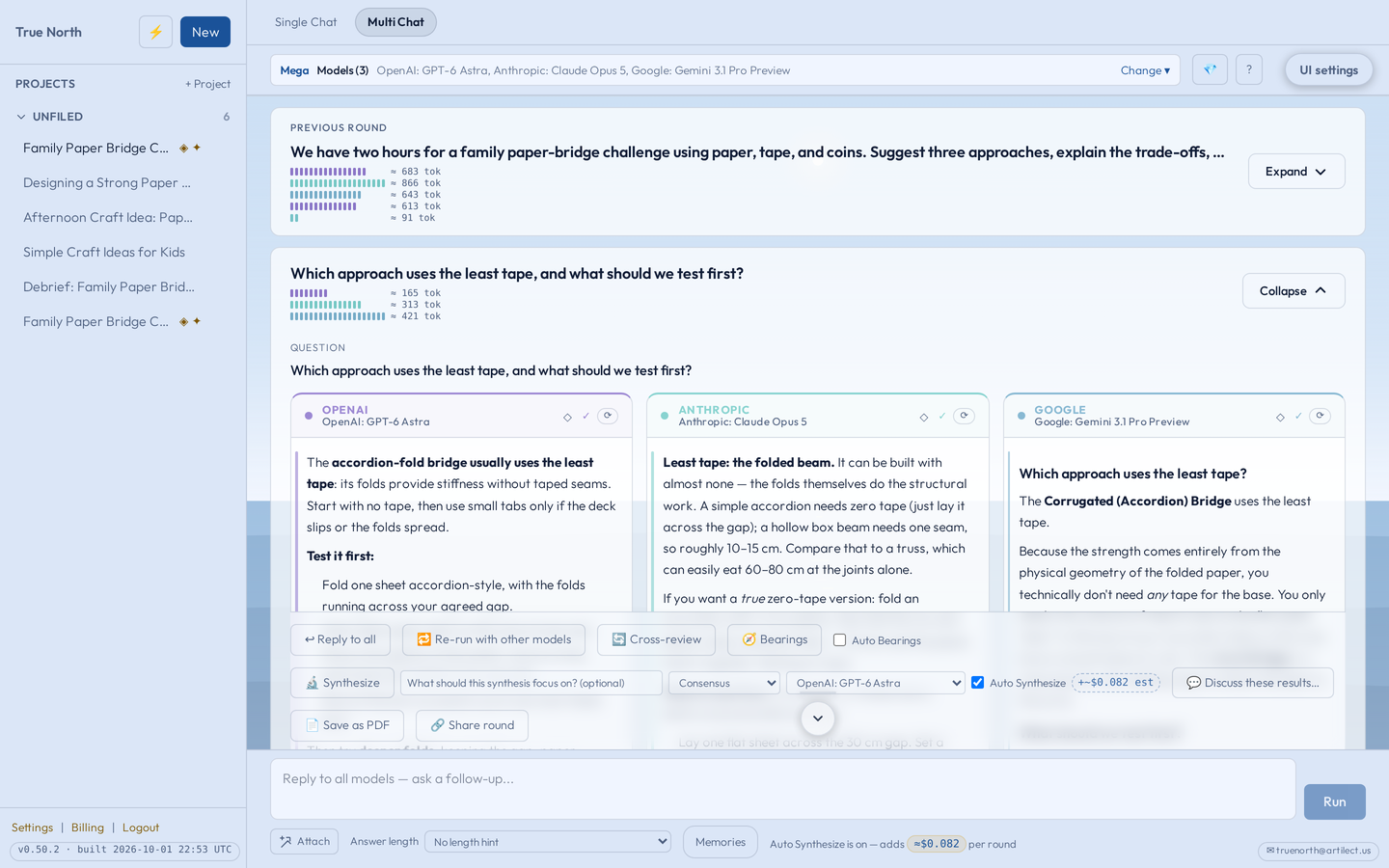
Use the main follow-up box at the bottom to ask every model another question. Each model continues its own thread. For example:
Which approach uses the least tape, and what should we test first?
Use an answer’s own reply control when you want to continue with just that model. Earlier rounds fold up above the new one; open any of them to read it again.
7Open a focused discussion#
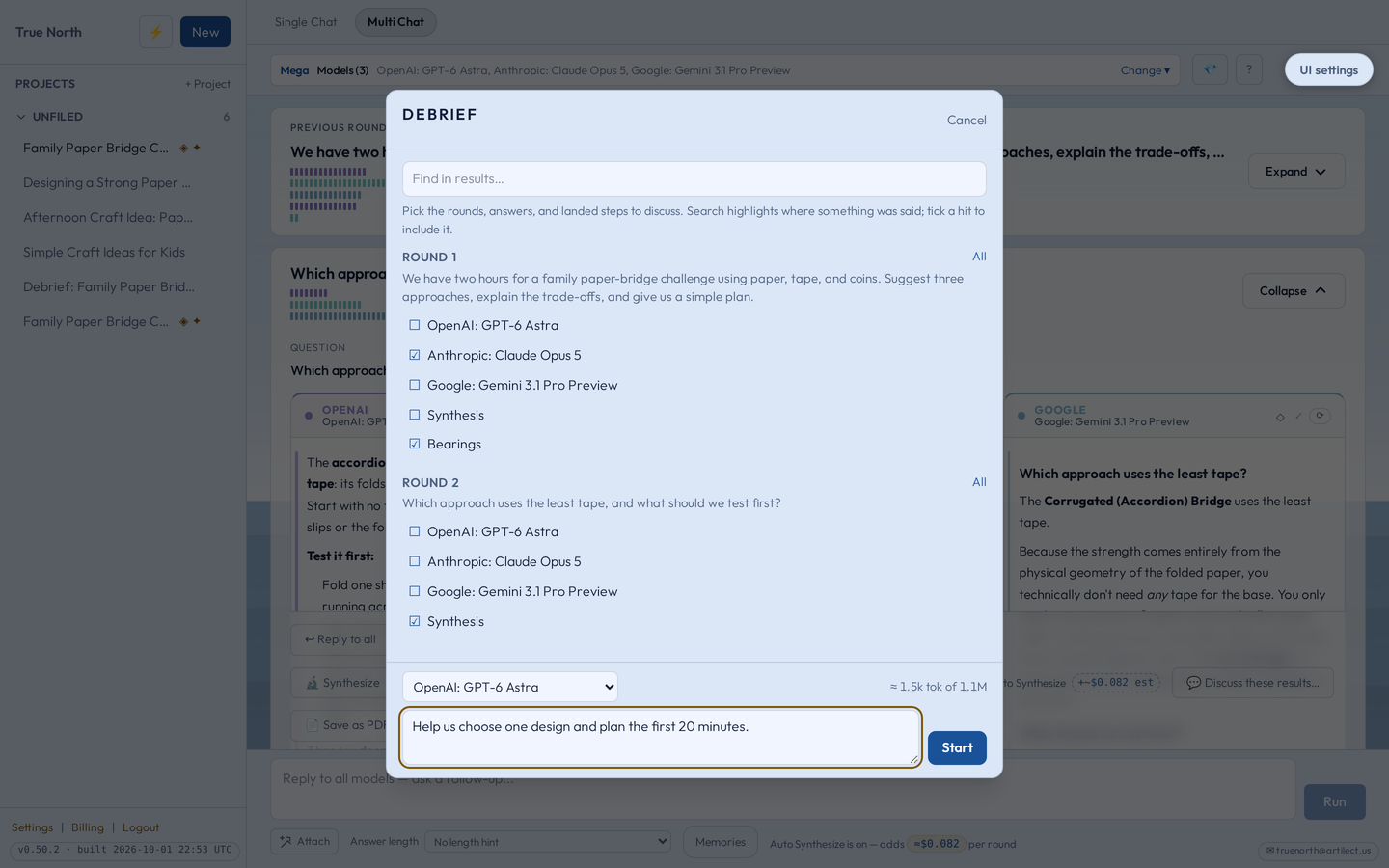
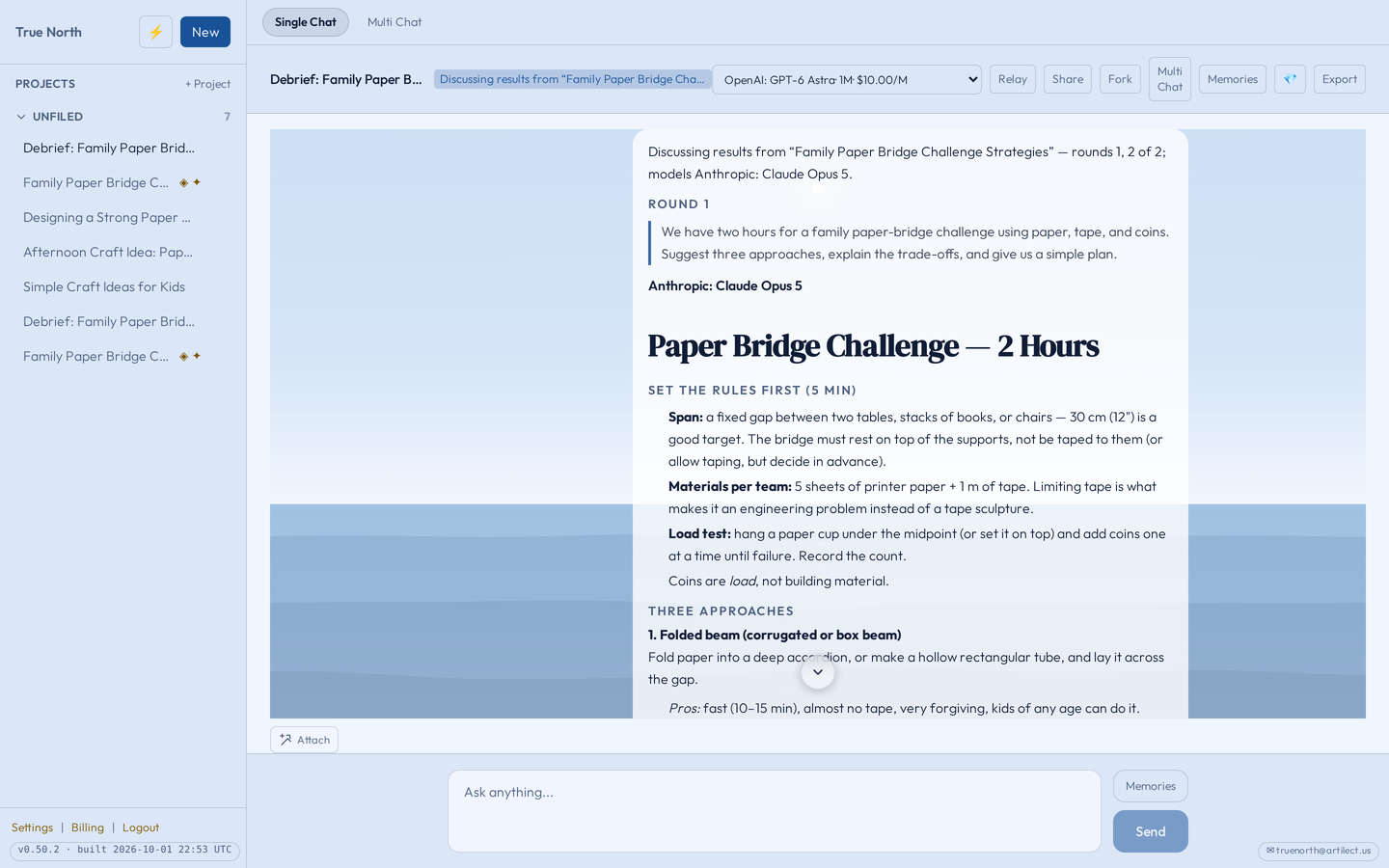
Choose 💬 Discuss these results…, tick the answers and results you want to talk about, and start the discussion. It opens as a new, linked chat, so a particular idea gets its own conversation while the original round stays as it was.
The picker shows roughly how much of the chosen model’s context your selection uses, so nothing is cut off without you knowing.
Choices and boundaries
Cost
Every model in a round is a separate answer, so a round costs roughly the sum of its models. The estimate is shown before you send and the actual cost once the round lands. Cross-review asks every model again, so it adds about another round; its estimate appears beside the button. Pressing Synthesize by hand runs, and charges for, another synthesis.
Carrying results forward
The Include in next question boxes add the latest synthesis or Bearings to your next question as context, so the models see what was concluded without running the step again.
Slow or failing models
If a model is slow, you can skip it and the round finishes with the answers that arrived. If a model fails, its column says so; the others still answer.
Sharing a round
Share round creates a public, read-only page for one round. It needs at least two completed answers and carries the models’ answers, never the Cross-review critiques or Bearings. Anyone with the link can read it until you stop sharing, and a copy someone already saved can’t be taken back. Encrypted chats can’t be shared.
Children
A child’s Multi Chat uses their own Basic and Medium lineups, built from models cleared for children; there is no Mega-class lineup for children. Children can’t share rounds, and Discuss these results is for adults only. If a parent holds each of a child’s messages for approval, Multi Chat isn’t available to that child; they use Single Chat instead. The Safety filter applies in Multi Chat as it does everywhere else.
Try it
Bring a question with more than one reasonable approach. Compare the answers, inspect one difference, and ask one follow-up.