Guide · Sharing & Gems
Keep the part worth coming back to.
A useful conversation may contain one idea you want to remember. Save it as a Gem, add your own note, and decide whether to keep it private or share it.
In this walkthrough, we save an idea from a chat about our family paper-bridge challenge, share it, look at what someone receives, and stop sharing.
What you can do
- Save a paragraph or a single sentence of an answer as a Gem, and find it again in the Gold Chest.
- Share a Gem, a whole Single Chat, or one Multi Chat round as a read-only page.
- See everything you have shared in one place, and revoke any link.
Before you begin
- Gems are saved from answers in your own chats, in Single Chat and Multi Chat. This walkthrough uses an ordinary Single Chat. Encrypted chats can’t be shared, and Gems can’t be saved from them.
- Sharing is for adult accounts. Children can save Gems for themselves, but they can’t create share links.
1Save part of an answer#
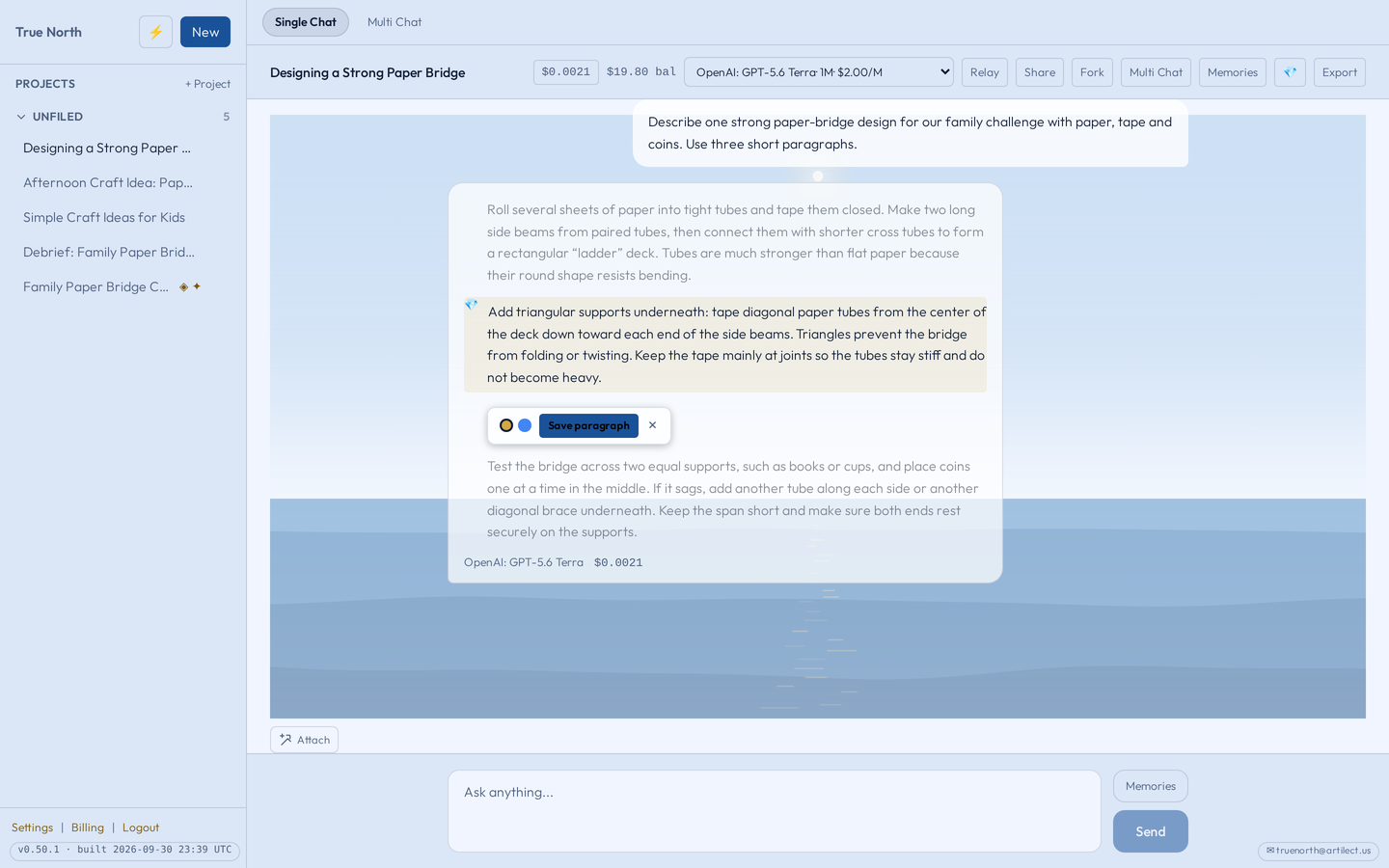
In an answer with more than one paragraph, point at a paragraph; a 💎 appears beside it. Click the paragraph, then choose Save paragraph. To keep just one sentence, click that sentence instead and it is saved straight away.
In Multi Chat, choose 💎 Save a passage under a model’s answer, a Cross-review critique or the synthesis, then pick a paragraph or sentence the same way. Bearings can’t be saved as a Gem.
You are keeping the passage for yourself. Sharing it is a separate choice you can make later.
2Find it in the Gold Chest#
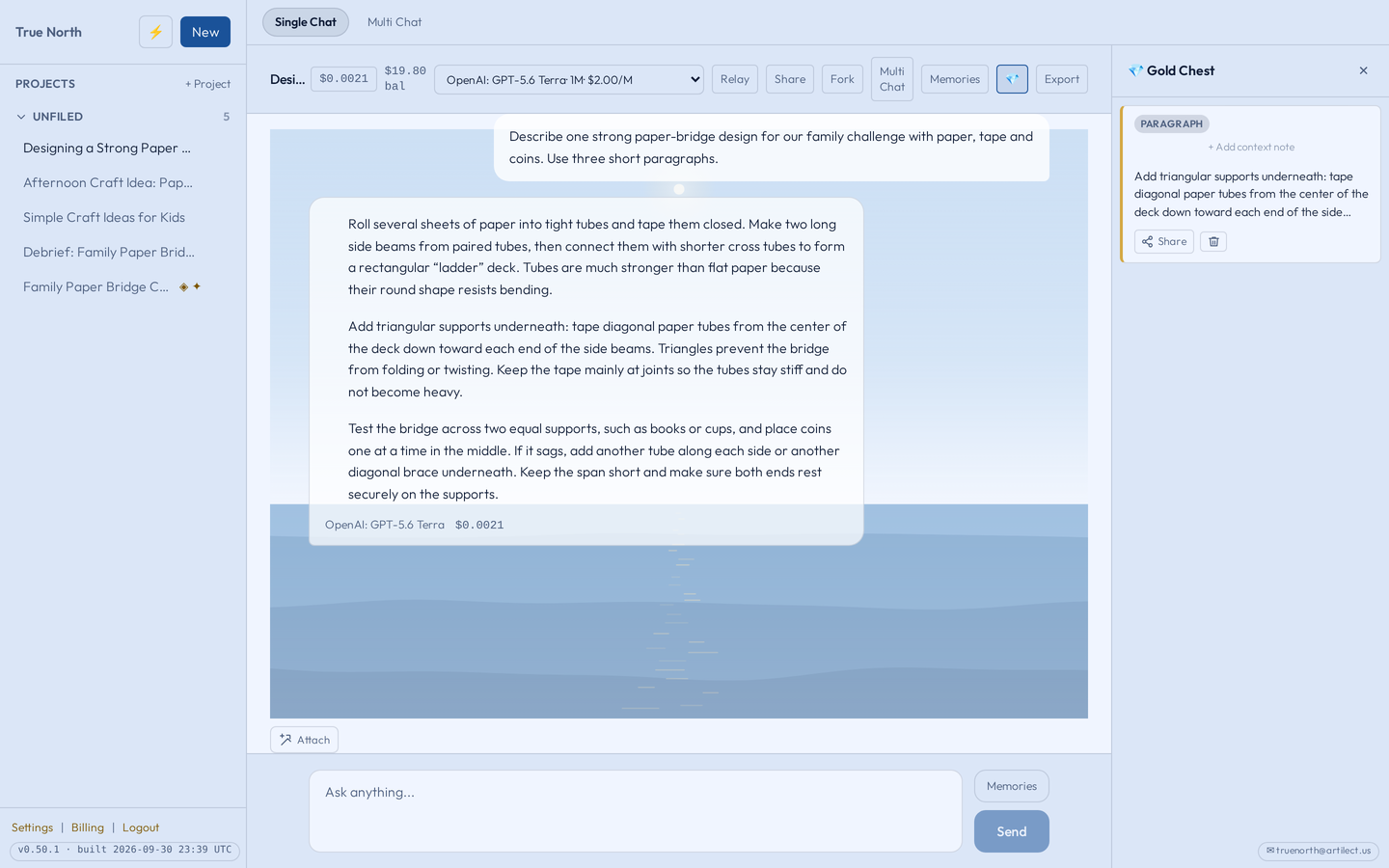
Choose 💎 at the top of the chat, in Single Chat or Multi Chat, to open the Gold Chest, where your saved Gems are kept. Check that the passage you wanted is there. A Gem saved in Multi Chat says where it came from, such as which model’s answer or critique, or the synthesis.
A short passage is often easier to come back to than a long conversation.
3Add a note in your own words#
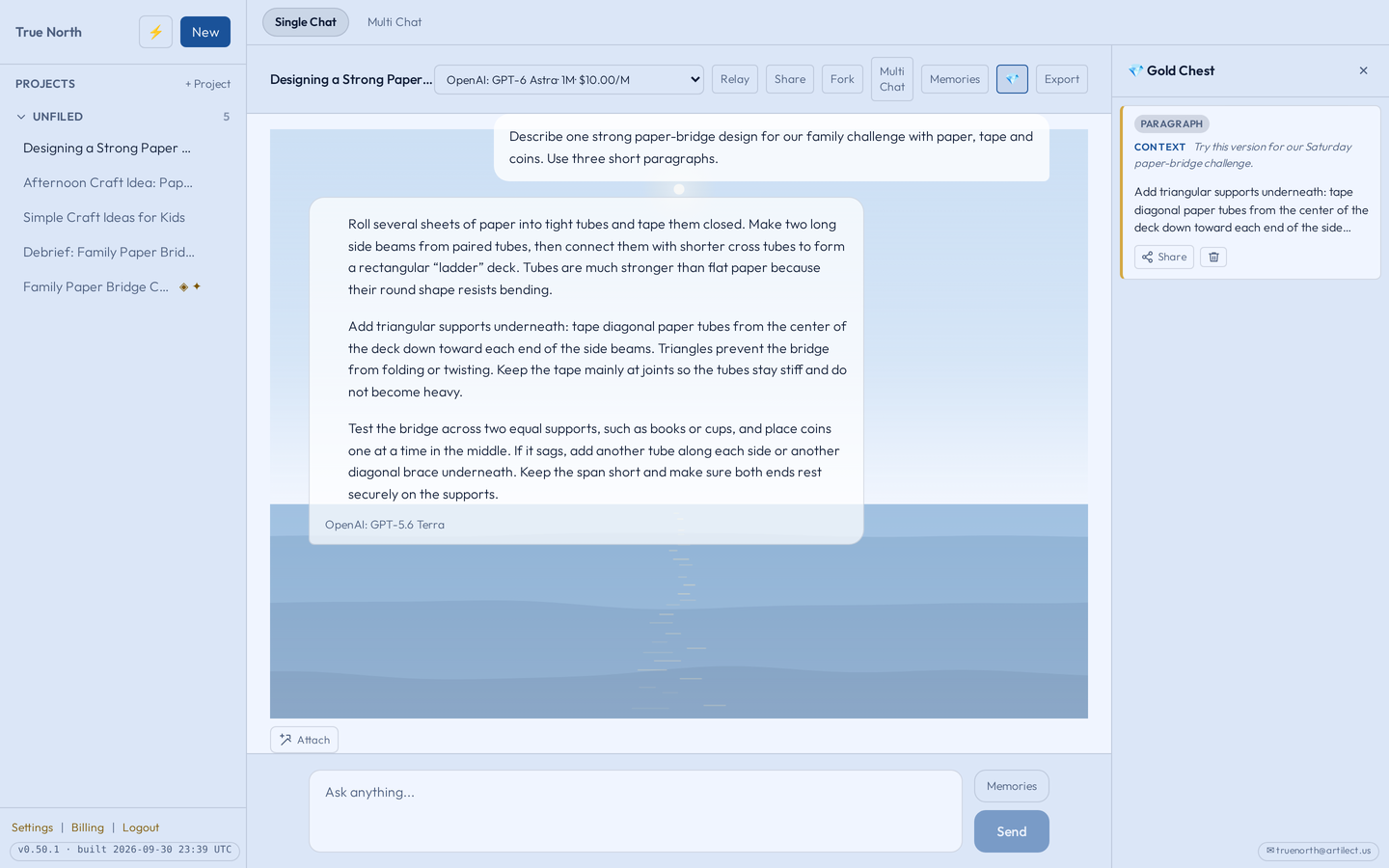
On the Gem, choose + Add context note, write your note, and choose Save. For this example:
Try this version for our Saturday paper-bridge challenge.
The note reminds you why the passage mattered. If you share the Gem, the note is shown with it.
4Share the Gem#
A shared Gem can be read by anyone with the link, without an account. Before you share, read the passage and your note for personal details: your account details are not shown, but anything written in the text is.
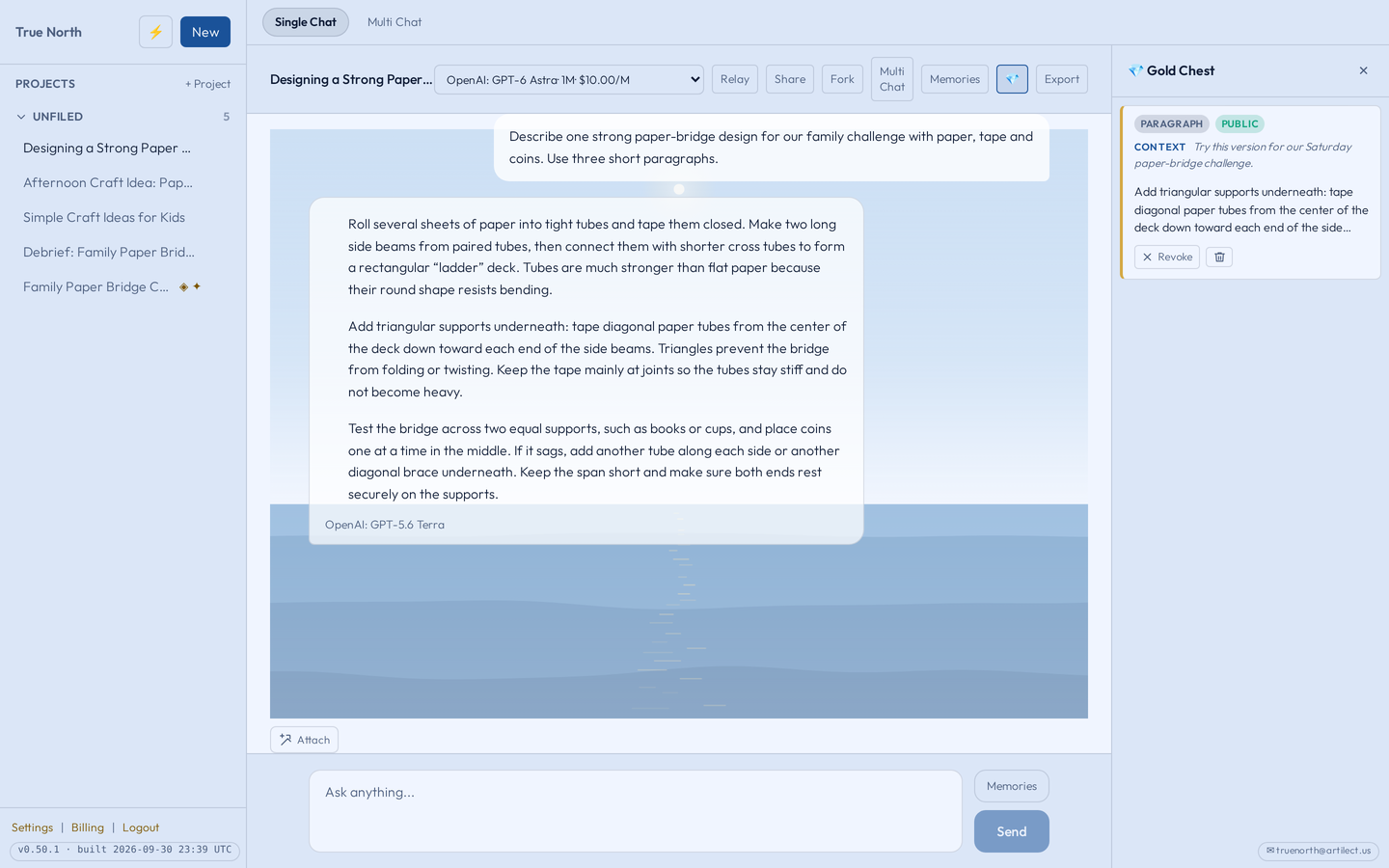
Choose Share on the Gem. The link is copied for you, and the Gem is marked public in the Gold Chest.
5Check what someone receives#
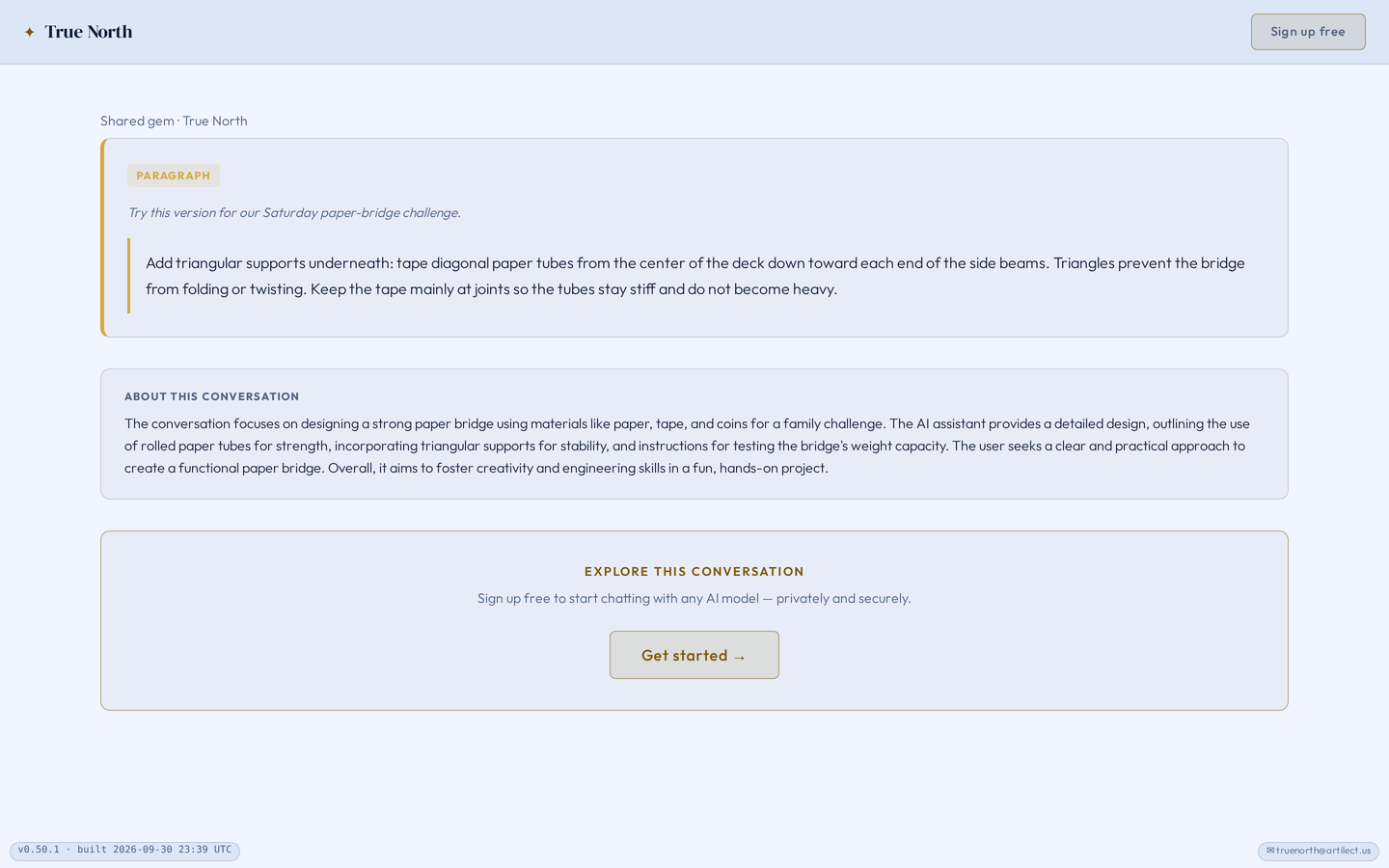
Open the link in a signed-out browser window and read the whole page.
A shared Gem shows the passage and your note. When you share it, True North also asks a model to write a short summary of the surrounding conversation, shown under About this conversation. That can reveal more than the passage itself, so read it too. If no summary could be written, the page shows just the passage and note.
6Choose how much to share#
| Share | Where | What the reader sees |
|---|---|---|
| A Gem | Share in the Gold Chest | The passage, your note, and the conversation summary |
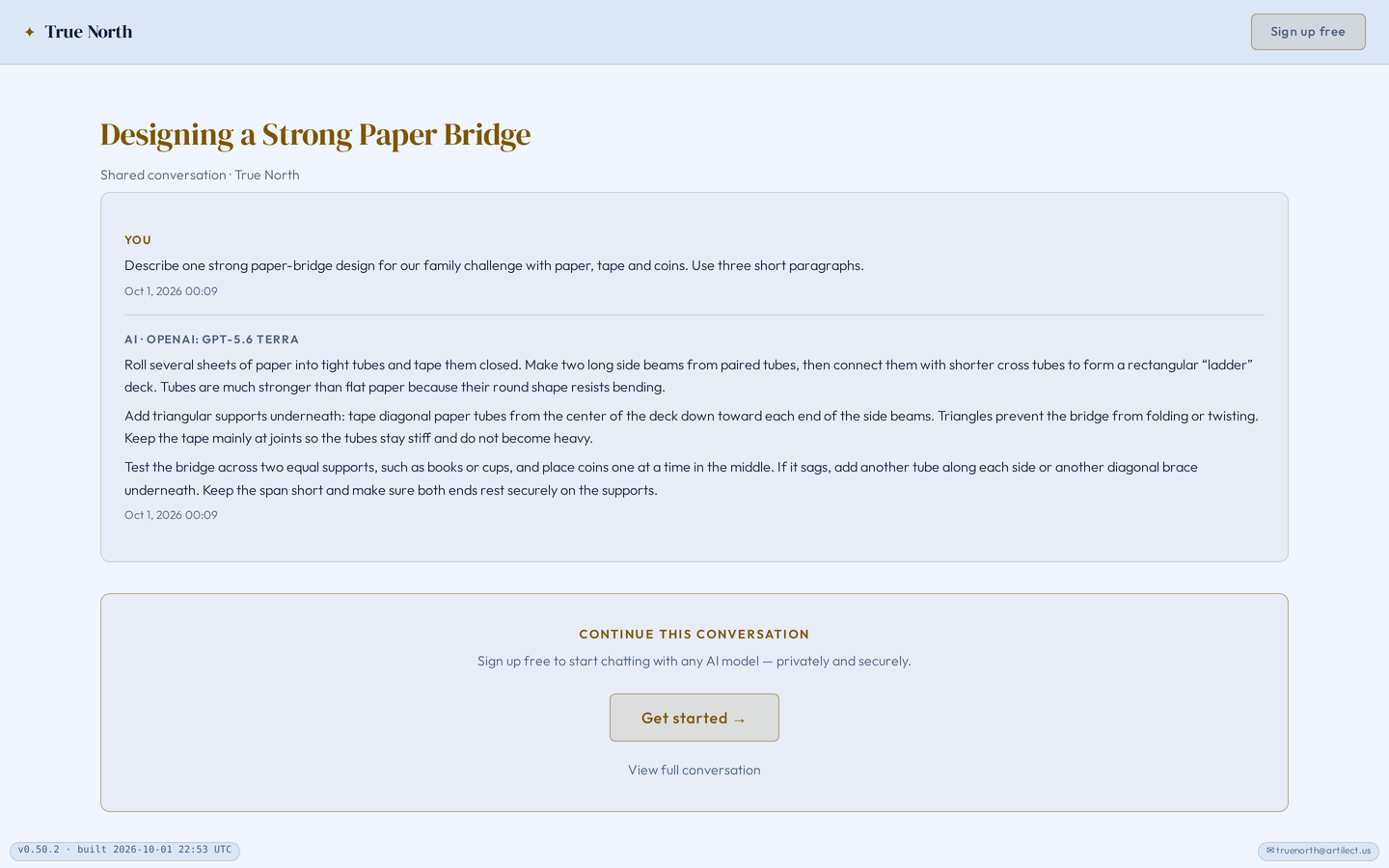
| A chat | Share at the top of a Single Chat, then Create public link | The whole conversation, including messages you add later |
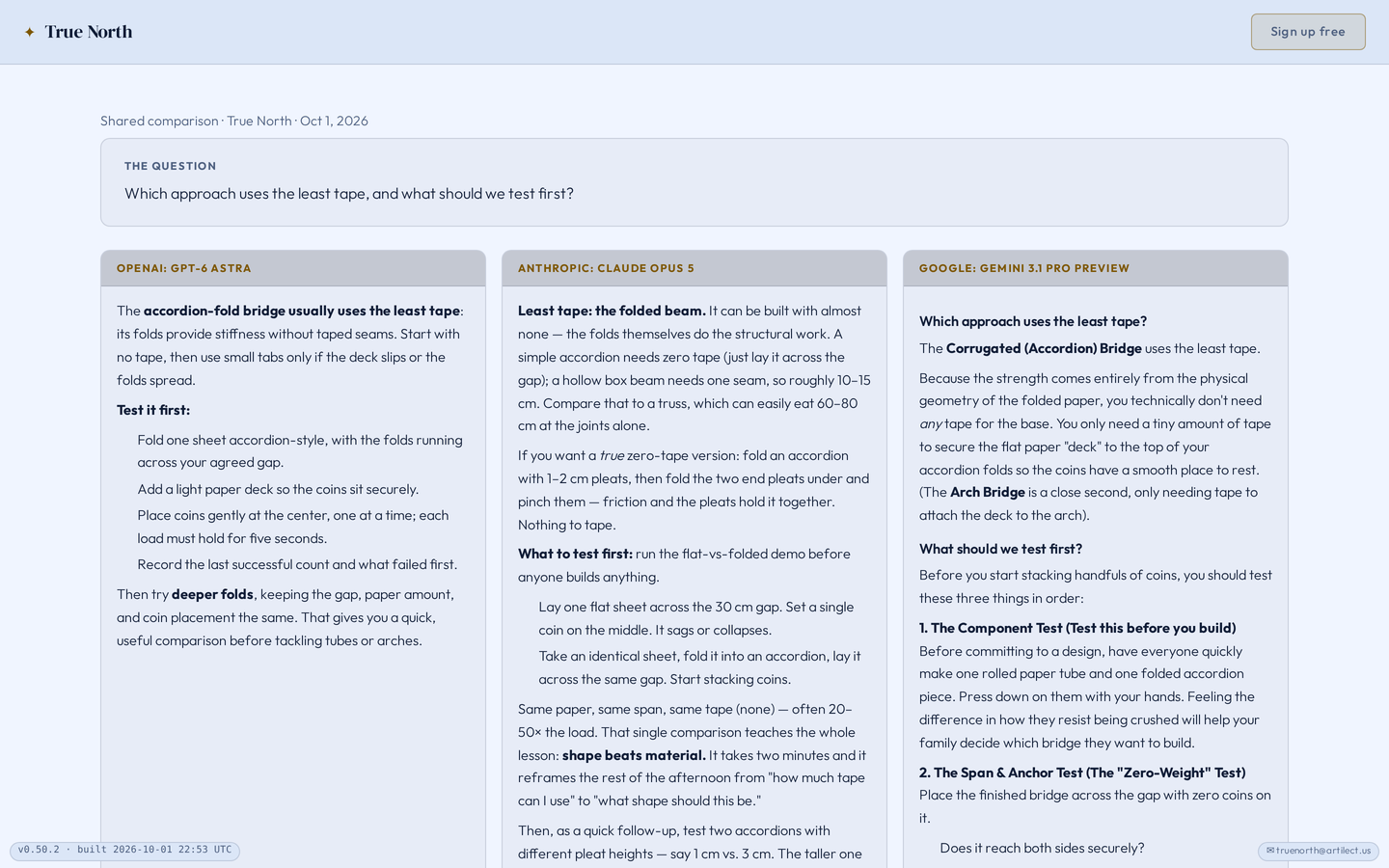
| A Multi Chat round | 🔗 Share round among the round’s actions | The question and each model’s answer, plus the round’s synthesis if one finished |
Whole chats are shared from Single Chat. In Multi Chat you share one round at a time, once at least two answers have finished; a shared round never includes Cross-review critiques or Bearings.
7Stop sharing#
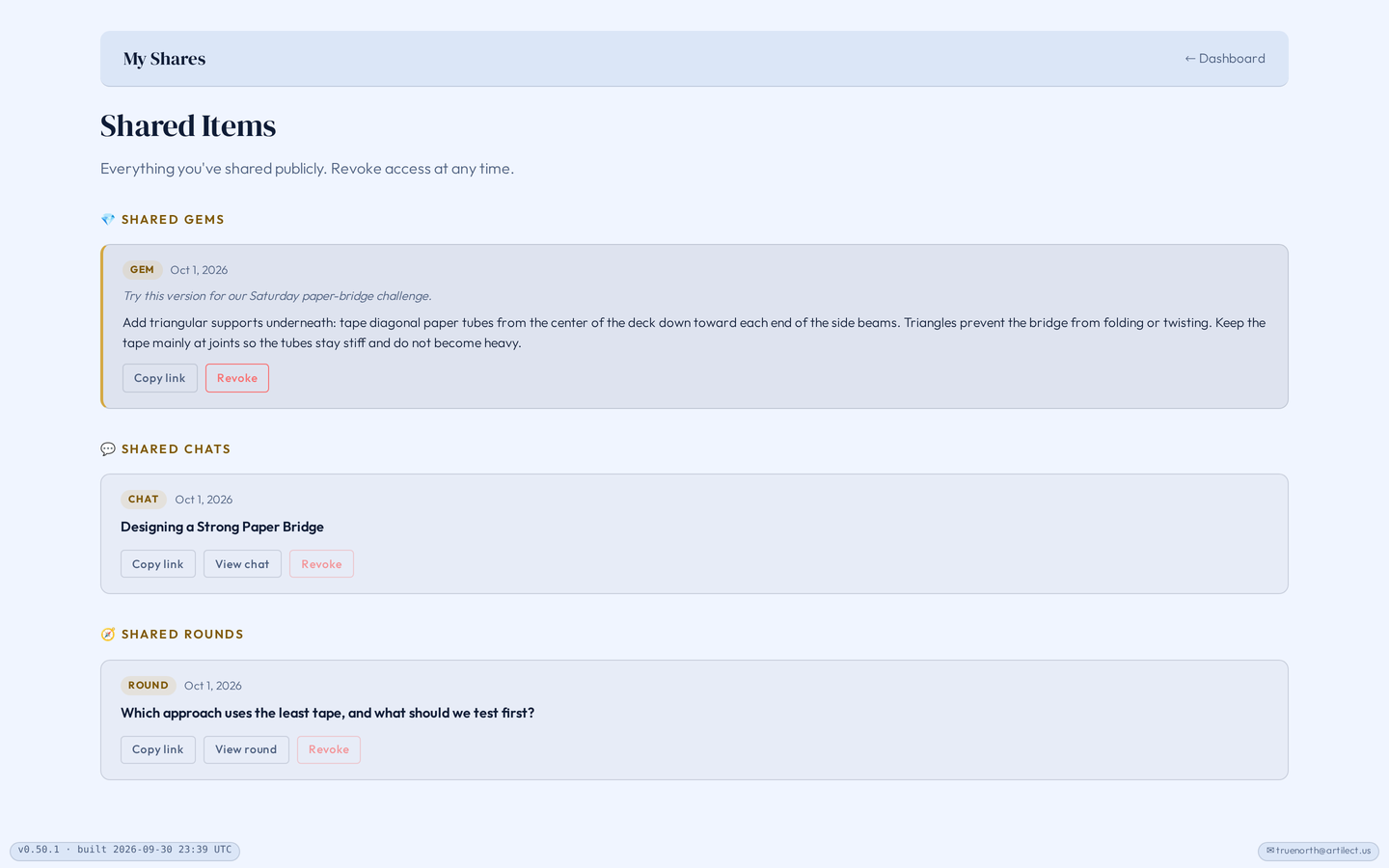
Open your Shares page. It lists your shared Gems, chats and rounds; choose Revoke on the one you want to stop. You can also stop from where you shared: Revoke on a Gem in the Gold Chest, Stop sharing in a Single Chat’s share panel, or Disable link under a shared round.
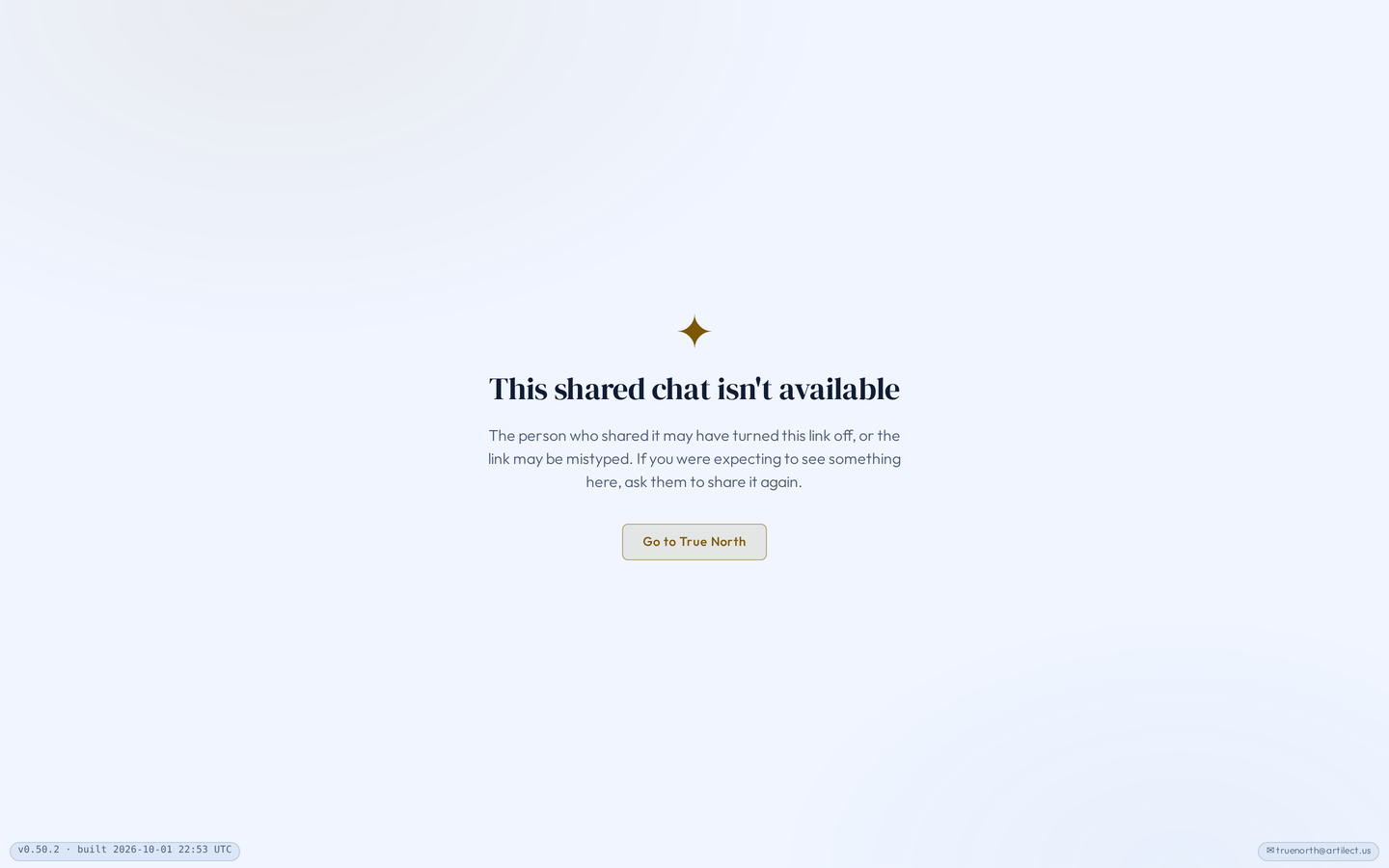
Reopen the link in a signed-out window to check that it no longer opens.
If you share the same item again later, the same link works again, for anyone who still has it. Revoking stops access through the link; it can’t remove copies or screenshots someone already made.
Choices and boundaries
Gems and highlights
The Highlight this answer button (◇) beside an answer, in Single Chat or Multi Chat, marks the whole answer as a highlight in the thread and in exports. That highlight stays in your browser: it is not a Gem, isn’t kept in the Gold Chest, and can’t be shared.
Whose chats
You can save Gems only from your own chats. A parent can read a child’s chats but can’t save Gems from them or share them.
The conversation summary
Writing the summary for a shared Gem uses a model, so it counts toward your usage.
Children and encrypted chats
Children can’t create share links for Gems, chats or rounds. Encrypted chats can’t be shared.
Try it
Save one useful passage and add a note about why it matters. Share it only when you are comfortable with everything on the public page.